

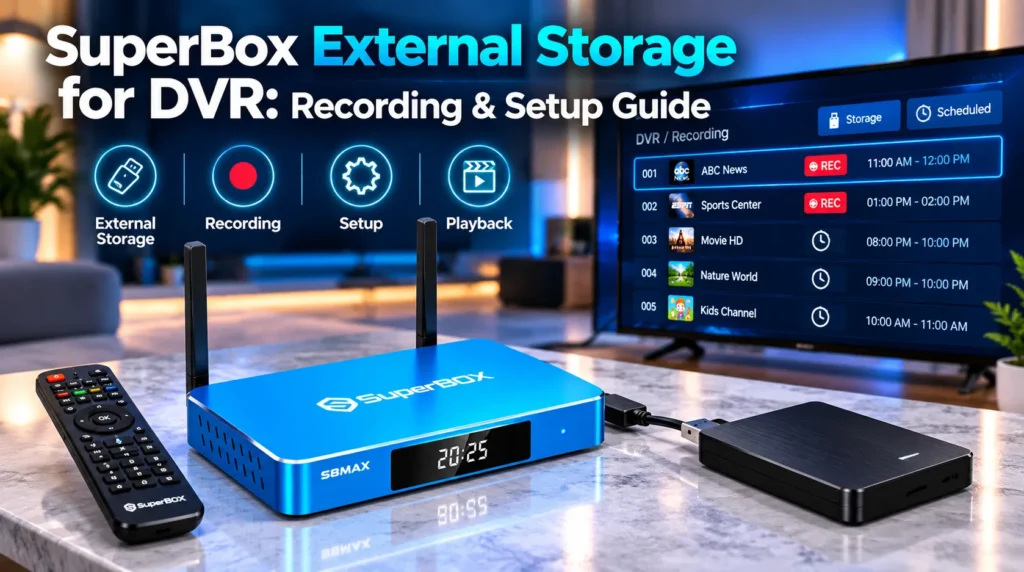
SuperBox streaming receivers support external storage devices through high-speed USB ports and microSD card slots, allowing users to expand storage and record live television broadcasts directly to external drives. While the platform includes an automated 7-day cloud Playback feature, connecting an external SSD or USB 3.0 flash drive enables permanent recording of championship games, pay-per-view events, and local broadcasts you want to keep indefinitely.
| Storage Medium | Capacity Range | Sustained Write Speed | Best For | Power |
|---|---|---|---|---|
| Portable External SSD | 250 GB to 2 TB | 350 to 1,050 MB/s | Long 4K and 1080p sports archives | Bus-powered via USB 3.0 |
| High-Speed USB 3.0 Flash Drive | 64 GB to 256 GB | 40 to 120 MB/s | Casual episodic recording | Bus-powered via USB 3.0 |
| External Mechanical HDD | 1 TB to 4 TB | 80 to 140 MB/s | Bulk media libraries | Powered USB hub recommended |
| MicroSD / TF Memory Card | 32 GB to 128 GB | 20 to 60 MB/s | Internal app storage expansion | Slot-powered on chassis |
Can you use external storage on SuperBox for DVR?
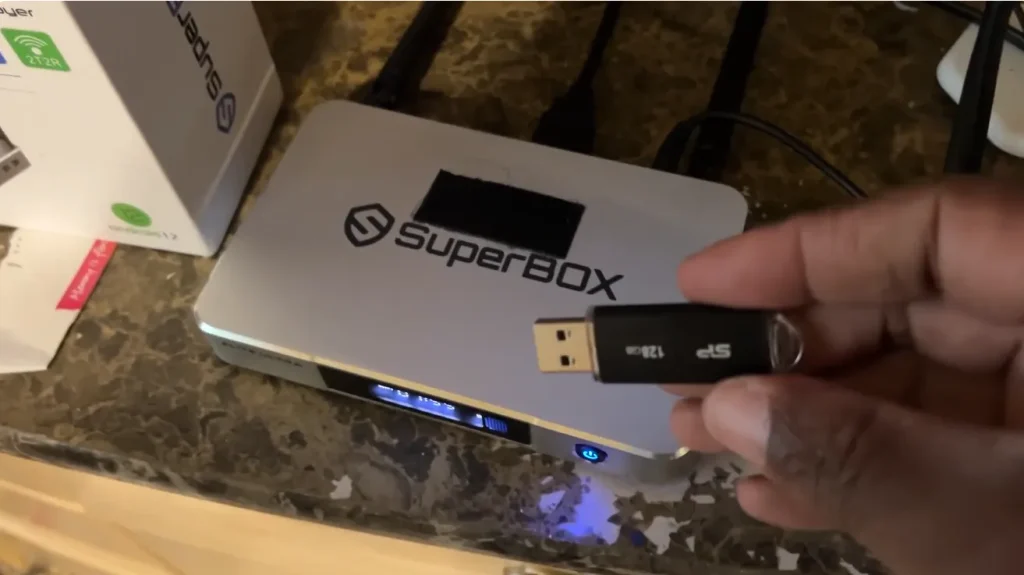
Yes. Modern SuperBox consoles recognize connected USB mass storage devices and microSD cards as secondary storage volumes.
Recording on SuperBox uses two distinct methods:
- Automated cloud catch-up: The native Playback App provides a rolling 7-day cloud archive across 86+ major networks, operating entirely on remote servers without local storage
- Local USB digital video recording: Users who want to keep broadcasts permanently or save specialty channels outside the 7-day cloud window can attach an external drive to capture live streams directly
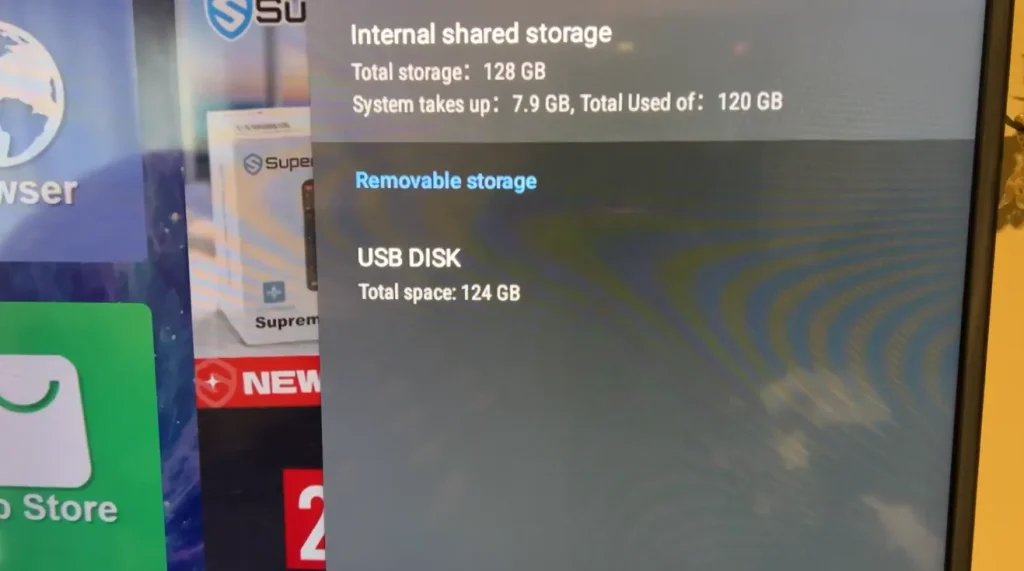
High-definition video consumes 3 to 4 GB per hour. Attaching external solid-state media provides the capacity needed for multi-hour sports events and full series seasons.
Which ports does SuperBox use for external storage?
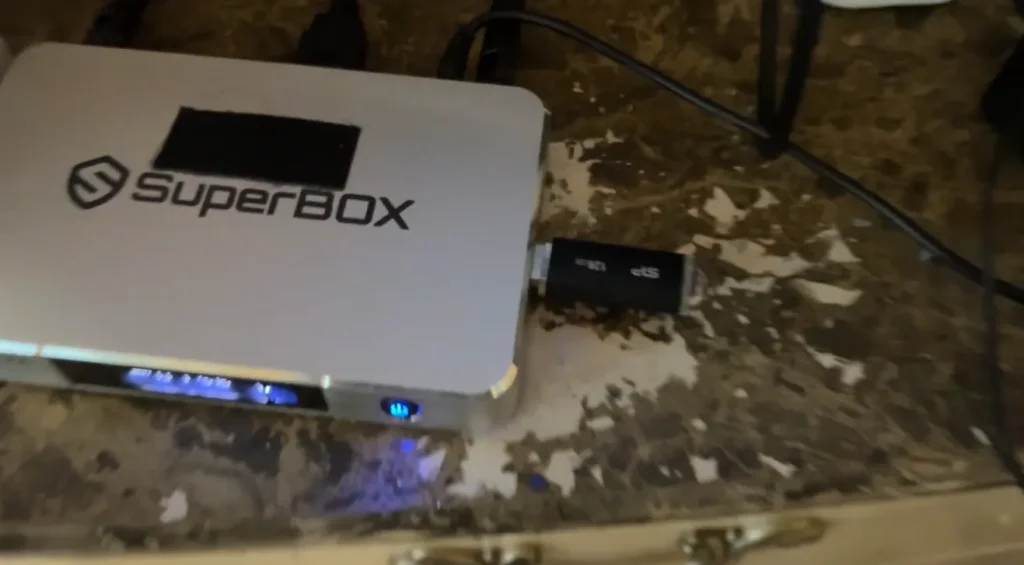
Flagship SuperBox models feature dedicated interfaces for external media:
- Blue USB 3.0 Type-A port: Operates at up to 5 Gbps — roughly 10 times the speed of USB 2.0. This is the designated port for DVR recording. High-bitrate video writes require steady sustained throughput, which USB 3.0 provides reliably
- Black USB 2.0 Type-A port: Best reserved for low-bandwidth peripherals such as wireless keyboard dongles, air-mouse receivers, or gamepads
- MicroSD / TF card slot: Supports cards up to 128–256 GB. In Android settings, this can be formatted as adopted storage to expand internal app capacity
Which external drives work best for SuperBox DVR?
Choosing the right storage medium ensures smooth video capture without dropped audio or file corruption:
- Portable external SSD: Devices like the Samsung T7 or Crucial X8 are the best choice. No mechanical platters — they run silently, draw minimal bus power, and deliver write speeds exceeding 350 MB/s to prevent throttling
- High-speed USB 3.0 flash drives: Compact and cable-free for recording individual games. Ensure the drive provides at least 30–50 MB/s sustained write speed; budget flash drives can overheat and freeze during long recording sessions
- Mechanical external HDDs: Offer large capacities up to 4 TB. Drives larger than 1 TB should be connected via a powered USB hub to prevent power brownouts from spinning platters
How do you format an external drive for SuperBox DVR?
Configuring the correct file system before recording is critical to avoid corrupted or truncated files.
| File System | Max Single File Size | Android Compatibility | DVR Recommendation |
|---|---|---|---|
| NTFS | Virtually unlimited | Native read/write on modern firmware | Recommended for multi-hour HD recordings |
| exFAT | Virtually unlimited | Supported on Android 9.0 and newer | Excellent for cross-platform playback |
| FAT32 | 4 GB strict limit | Universal support | Not recommended — splits recordings mid-game |
Many USB drives ship formatted in FAT32. A two-hour HD broadcast easily exceeds 6 GB, causing a FAT32 drive to abort recording mid-game. Reformatting to NTFS or exFAT eliminates this limit entirely.
To format on your PC: right-click the drive letter in File Explorer, select Format, choose NTFS or exFAT, set allocation unit to 4096 bytes, and click Start.
To format on your SuperBox: navigate to Android Settings > Device Preferences > Storage > select your drive > Format as Removable Storage.
How do you record live TV on SuperBox step by step?
Capturing live broadcasts from Blue TV onto an external drive takes only a few steps:
- Tune to the live broadcast — open Blue TV and navigate to the channel you want to record
- Open the recording menu — press and hold the OK button on your remote for two seconds to open the stream control overlay
- Start recording — select Start Recording; a red REC indicator with an elapsed time counter will appear in the screen corner
- Keep the channel active — do not switch channels while recording is active, as changing stations ends the session
- Stop and save — when the broadcast concludes, press and hold OK again to stop recording safely
- Play back your recording — open the File Manager or Media Center from the home screen, browse to your external drive’s Recordings folder, and select your file to play with full pause and rewind controls
How does local USB DVR compare to the cloud Playback app?
| Metric | Local USB DVR Recording | Automated 7-Day Cloud Playback |
|---|---|---|
| Hardware needed | External SSD, USB drive, or HDD | Zero external hardware |
| Retention lifespan | Permanent — until manually deleted | 7 rolling days maximum |
| Channel availability | Any active live channel | 86+ select prime networks |
| Scheduling | Trigger manually during broadcast | Fully automated in background |
| Offline viewing | Full support on any PC or media player | Requires live broadband connection |
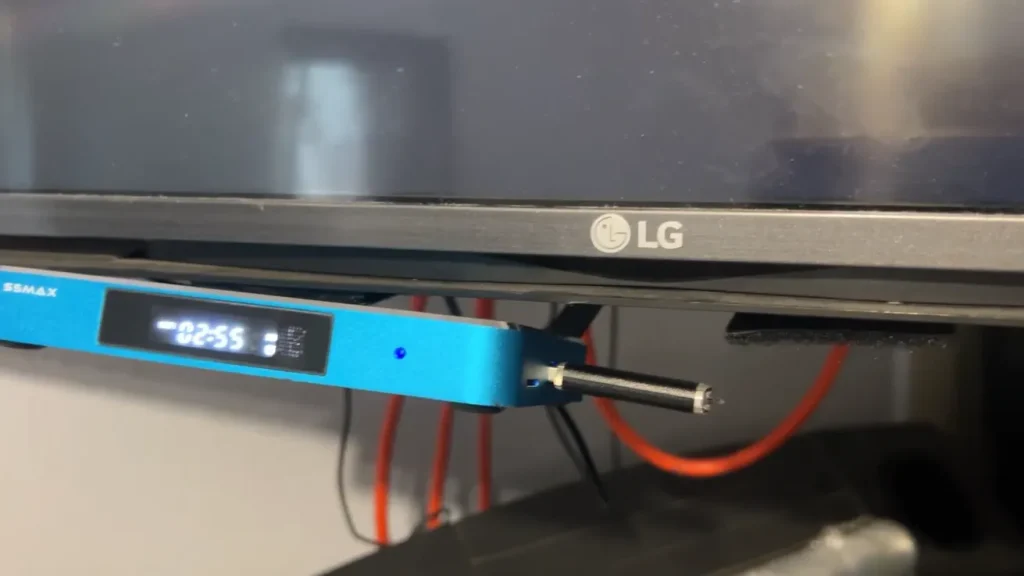
For most everyday needs, the cloud Playback App is ideal — if you miss a game or prime-time show from the past week, launch Playback and watch immediately without any setup. Use local USB storage when you want to keep a historic championship game permanently, capture specialty channels not archived in cloud Playback, or take recordings offline for travel.
How do you troubleshoot common recording errors?
- Drive not recognized: Ensure the drive is firmly inserted into the blue USB 3.0 port. Verify the file system is NTFS or exFAT — macOS APFS drives are unsupported. If a mechanical drive clicks, connect it through a powered USB hub
- Recording stops at 4 GB: Your drive is formatted in FAT32. Reformat to NTFS or exFAT on a computer to allow continuous large-file capture
- Recording stutters or freezes: Inexpensive flash drives throttle under continuous write operations. Switch to a reputable portable SSD. Connect your SuperBox via wired Ethernet to stabilize the incoming stream
- Audio out of sync on playback: Play the saved video file using VLC for Android or MX Player and toggle between Hardware and Software decoding in the player settings
Frequently asked questions
Can I record live sports on SuperBox with a USB flash drive?
Yes. Connect a high-speed USB 3.0 flash drive to the blue USB port. While watching a game in Blue TV, hold OK for two seconds and select Start Recording. Ensure the drive is formatted in NTFS or exFAT and provides at least 30 MB/s sustained write speed.
What is the maximum hard drive size SuperBox supports?
SuperBox supports external USB hard drives and SSDs up to 2–4 TB formatted in NTFS or exFAT. For mechanical hard drives larger than 1 TB, use an externally powered USB hub for adequate power delivery.
Does SuperBox have a built-in DVR?
SuperBox includes a 7-day cloud DVR via the Playback app, which archives 86+ premier channels without using local device storage. For permanent recordings beyond 7 days, attach external USB storage and record directly from Blue TV.
Where are recorded video files stored?
Recorded files are stored in the Recordings folder on your connected external drive. You can access them using the built-in File Manager or any media player like VLC for Android.
Why did my recording stop at 4 GB?
Your drive is formatted in FAT32, which enforces a strict 4 GB maximum single-file limit. Reformatting to NTFS or exFAT removes this restriction and allows uninterrupted recording of any length.






Reader Discussion & Verified Reviews
Real feedback, setup tips, and hands-on impressions from verified SuperBox owners and tech enthusiasts.