

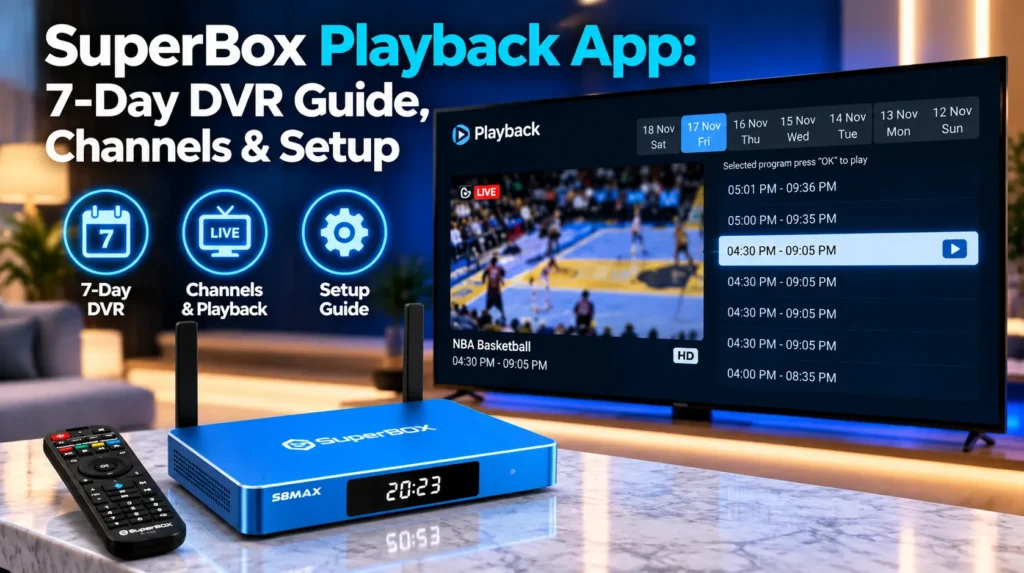
The SuperBox Playback app is a native cloud catch-up television application pre-installed on SuperBox Android TV receivers, allowing viewers to watch past broadcasts from the preceding seven days without manual recording timers or external hard drives. Operating across SuperBox S8, S7, S6, and S5 Max hardware, the application archives up to 86 core channels — including national broadcast networks, 24/7 cable news, and premier sports programming — with full pause, rewind, and fast-forward controls.
| Feature | Specification |
|---|---|
| Catch-Up Window | 7 consecutive days (168 hours of continuous cloud archive) |
| Channel Selection | Up to 86 dedicated channels — news, sports, major networks |
| Storage Architecture | 100% remote cloud streaming — zero internal device storage used |
| Seeking Controls | Interactive progress bar with rewind, fast-forward, and commercial skip |
| Timeline Navigation | Date bar and chronological program schedule drawer |
| Video Settings | Adjustable aspect ratio, hardware/software decode, speed monitor |
| Hardware Support | SuperBox S8, S7, S6 series, and S5 Max |
What is the SuperBox Playback app?
The SuperBox Playback app is an integrated catch-up television platform engineered for SuperBox receivers to deliver on-demand access to scheduled network broadcasts that aired over the past seven days. Unlike traditional set-top boxes requiring recording timers or external DVRs, Playback operates entirely in the cloud.
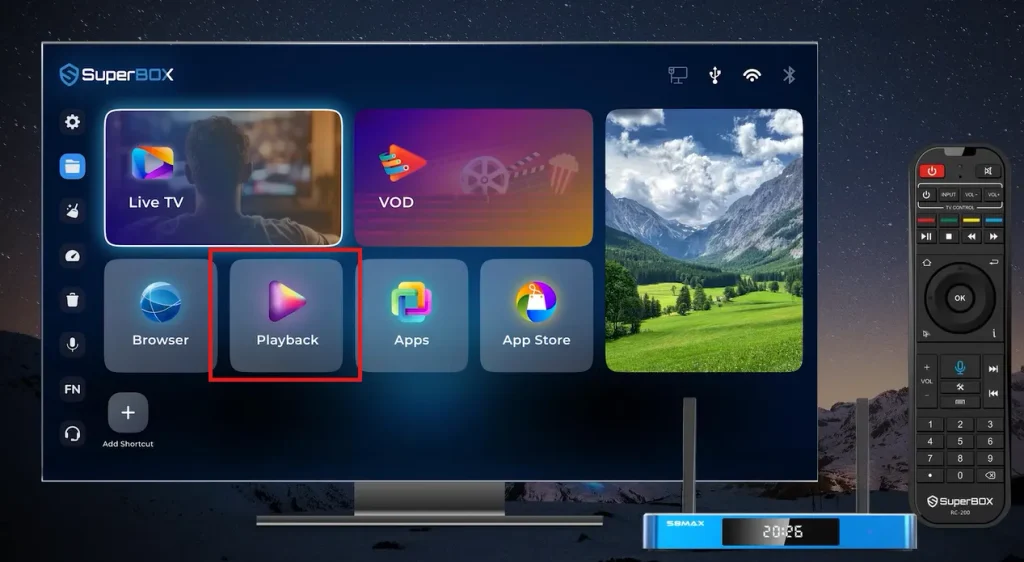
When viewers miss a live evening news broadcast, a Sunday football game, or a prime-time drama, they open Playback, pick any supported network, select the aired program from an interactive schedule, and watch the full broadcast immediately.
Automated cloud capture servers ingest and transcode broadcast feeds 24 hours a day across 86+ channels. The system preserves a continuous rolling 168-hour archive. Once programming passes the 7-day threshold, the oldest day purges automatically to make room for new broadcasts. Video streams route through the onboard hardware decoder, beginning playback smoothly within 2–3 seconds. All buffering occurs in volatile RAM — internal device storage is never touched.
How does Playback differ from the Blue TV live time-shift?
| Feature | Playback App | Blue TV Live Time Shift |
|---|---|---|
| Archive Retention | 7 full days (168 hours) | Up to 8 hours from current live point |
| Recording Setup | 100% automated in the cloud | Instant rolling live buffer |
| Internal Storage Used | 0 GB | 0 GB |
| Channel Availability | 86+ specialized networks | 1,800+ live networks |
| Navigation | Full timeline by date and program | Live buffer seeking only |
| Commercial Skipping | Supported via progress bar | Supported via progress bar |
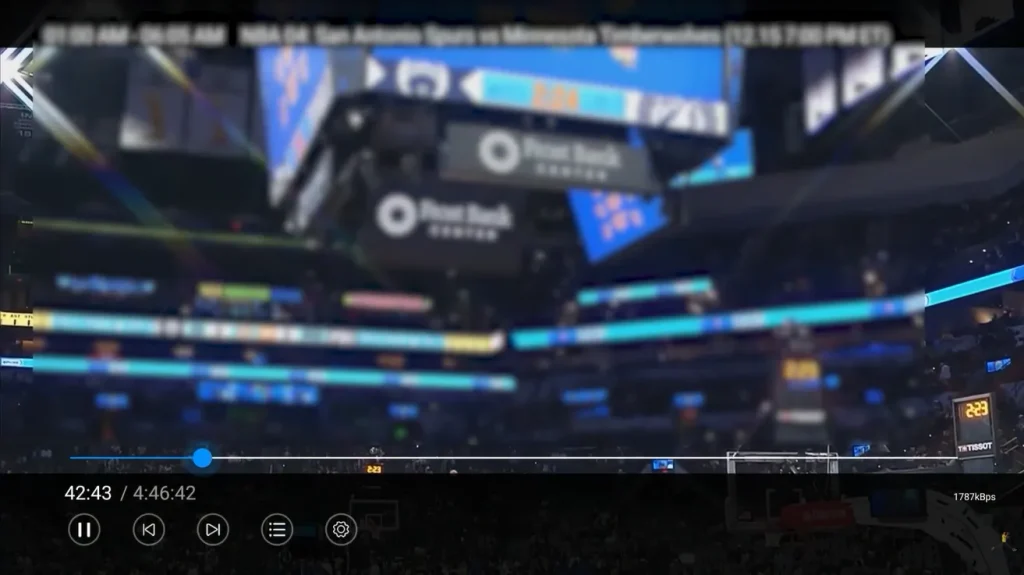
Blue TV’s live time-shift allows you to pause or rewind to the beginning of a show currently on air — up to 8 hours back. If a game or broadcast aired two days ago, Blue TV cannot retrieve it. That is where Playback takes over, giving access across seven full calendar days.
What channels are available in the Playback app?
The Playback app focuses on time-sensitive programming across three main categories:
- Major national broadcast networks: Full 7-day archives of ABC, CBS, FOX, NBC, and PBS — covering prime-time dramas, morning talk shows, and weekend sports
- Round-the-clock news: Complete archives for CNBC, CNN, Fox News, MSNBC, Bloomberg, and The Weather Channel
- Sports networks: Extensive coverage across ESPN, ESPN2, FS1, FS2, NFL Network, MLB Network, NBA TV, and regional sports networks
Select promotional combat events may conclude their cloud recording blocks prior to post-fight coverage. For most syndicated league games and scheduled sports, the archive is complete and reliable.
How do you use the Playback app step by step?
- Launch Playback — click the blue Playback icon on the home launcher, or hold the voice button on your remote and speak “Playback”
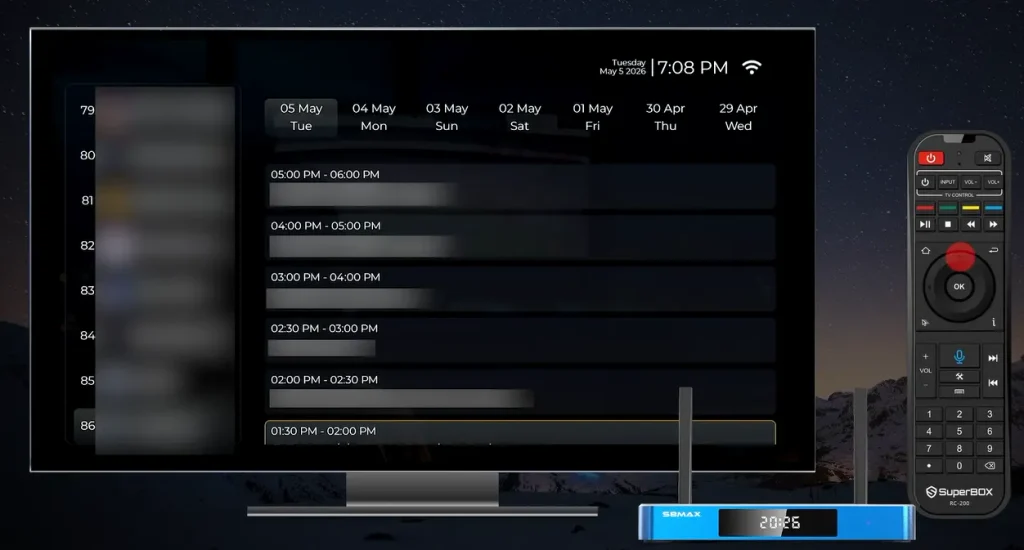
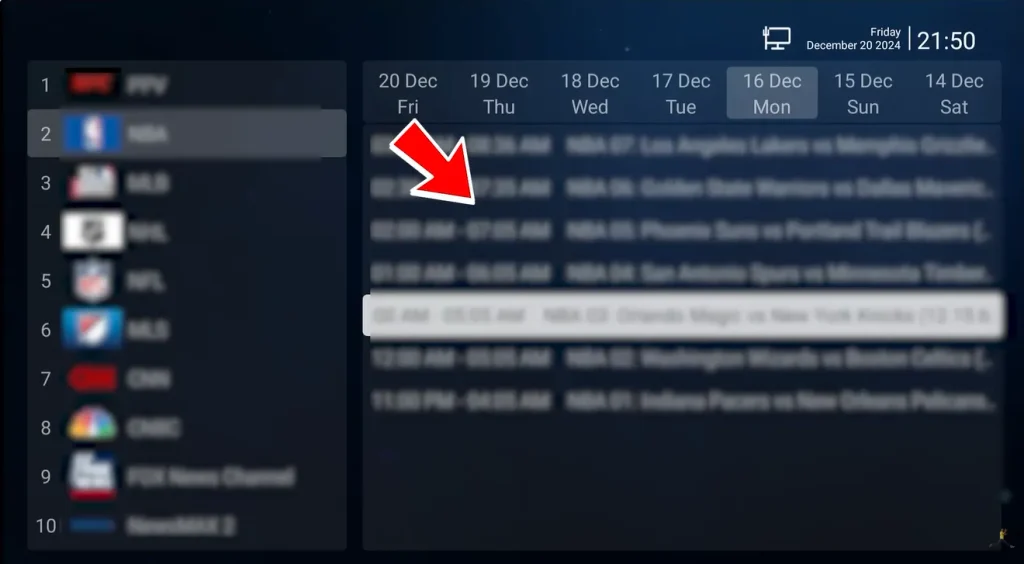
- Select a channel — in the left-hand column, browse the channel directory using the arrow buttons and press OK
- Choose the broadcast date — across the top date bar, select the day the program originally aired — up to 7 days back
- Pick your program — scroll down the chronological schedule, highlight the show or game, and press OK to begin
- Control your playback — press OK to display the progress bar, use Left arrow to rewind and Right arrow to fast-forward through commercial breaks, press the Programs button to switch shows without returning to the main menu
What video and network settings does Playback offer?
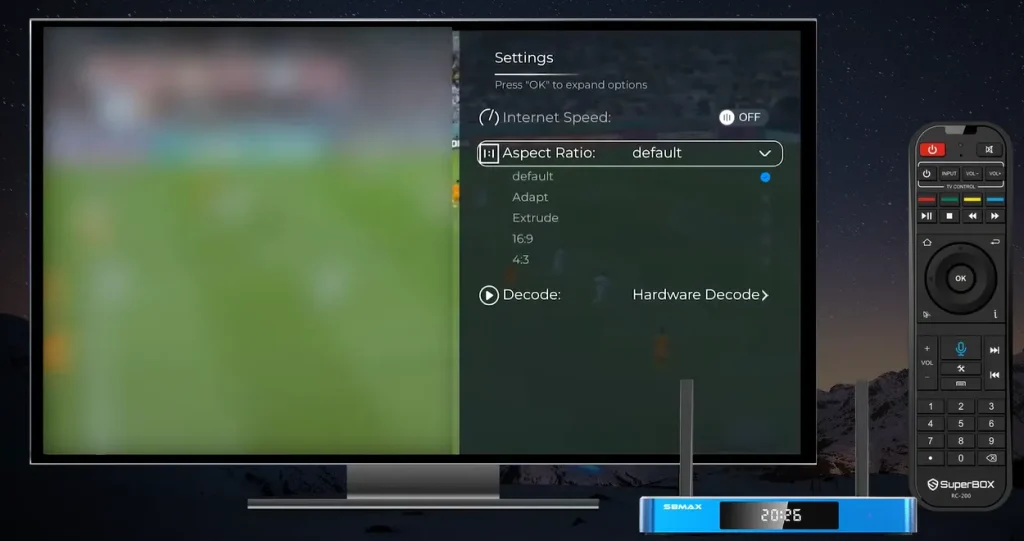
Press Menu on your remote while watching any program to access configuration options:
- Speed indicator: Toggle to display live download throughput in the corner of your screen — useful for diagnosing buffering
- Aspect ratio: Choose between Original, 16:9 widescreen, 4:3 standard, and Full Screen; Original or 16:9 is recommended for modern TVs
- Video decode mode: Switch between Hardware Decoding for smooth 60fps output and Software Decoding for compatibility over unstable connections
How do you reinstall Playback after a factory reset?
- Open the green App Store icon on your home launcher
- Locate the Playback application tile in the library
- Press OK to download and install the package
- Launch Playback from your home screen and confirm the channel directory loads correctly
If the App Store appears empty after a reset, restart your device to allow background servers to re-authenticate your hardware MAC address.
How do you troubleshoot common Playback issues?
- Continuous loading circle: Press Back once to exit the current stream, then re-select the program from the schedule. This resets the streaming socket connection with the cloud server
- Slow navigation or caching errors: Clear application cache by going to Android Settings > Apps > Playback > Clear Cache. Do not select Clear Data unless you want to reset all preferences
- Buffering during playback: Ensure your connection delivers at least 25–50 Mbps. Connecting via physical Ethernet cable eliminates the wireless interference and packet drops common on Wi-Fi
For users who want to keep broadcasts permanently beyond the 7-day window, attach a USB drive formatted in NTFS or exFAT and record directly from Blue TV using the in-app recording control.
Frequently asked questions
Does the Playback app use my internal device storage?
No. Playback does not consume internal flash storage. All video feeds are archived and streamed from cloud data centers. Video buffers temporarily in volatile RAM and clears automatically upon exiting the app.
Can you download or permanently export programs from Playback?
No. Playback functions strictly as a 7-day cloud streaming catch-up service. Once a broadcast passes the 7-day retention window, it expires from the archive. For permanent recording, attach external USB storage and record directly from Blue TV.
Which SuperBox models include the 7-day Playback app?
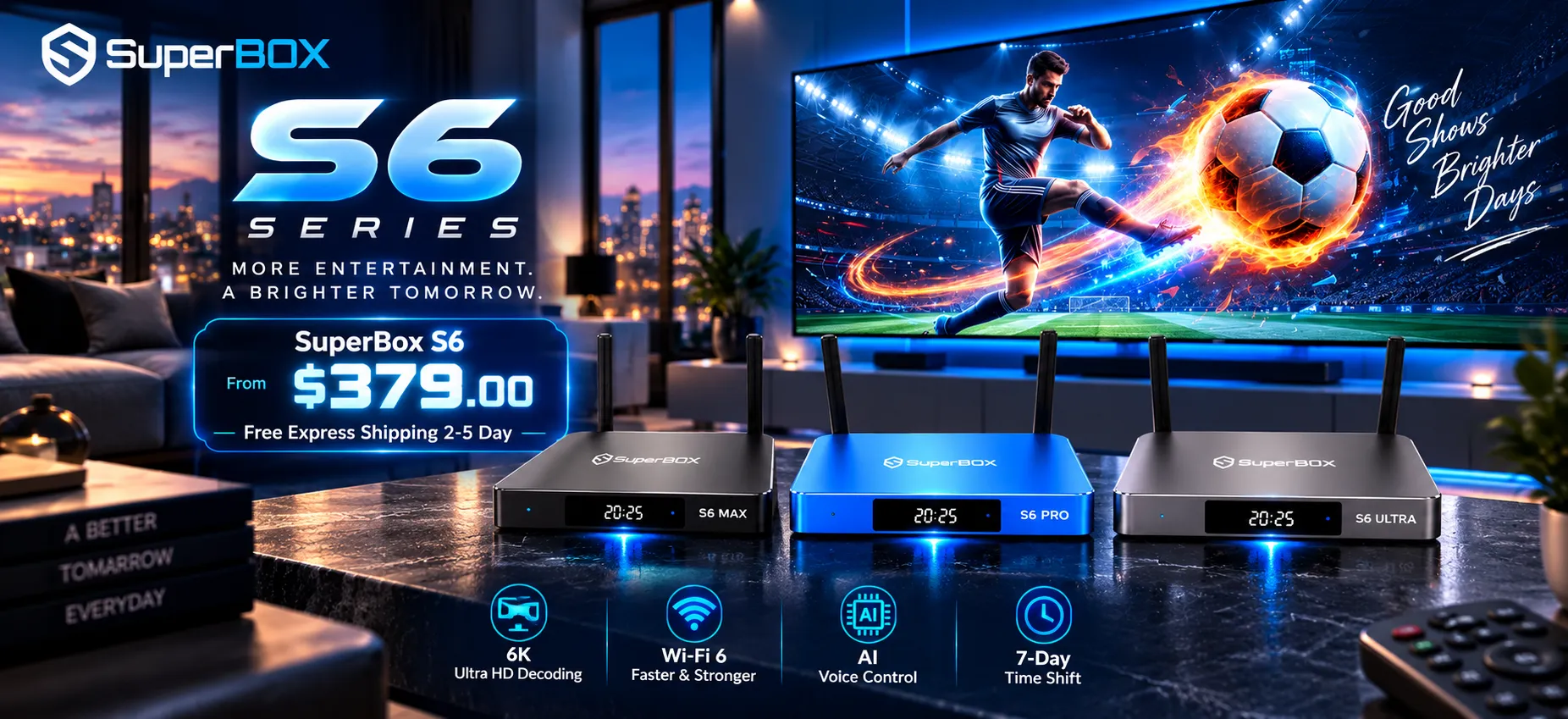
The 7-day Playback app is standard across all modern SuperBox receivers, including the S8 Ultra, S8 Max, S8 Plus, S8 Pro, S7 series, S6 series, and S5 Max.
Can I skip commercials in the Playback app?
Yes. You can fast-forward through commercial breaks using the Right directional arrow key on your remote. The progress bar also allows you to jump to any timestamp within the recorded broadcast.
What internet speed does the Playback app need?
A steady broadband connection of 25 to 30 Mbps is recommended for standard HD streams. For high-bitrate sports replays, 50 Mbps over wired Ethernet ensures smooth buffer-free playback.


Reader Discussion & Verified Reviews
Real feedback, setup tips, and hands-on impressions from verified SuperBox owners and tech enthusiasts.