

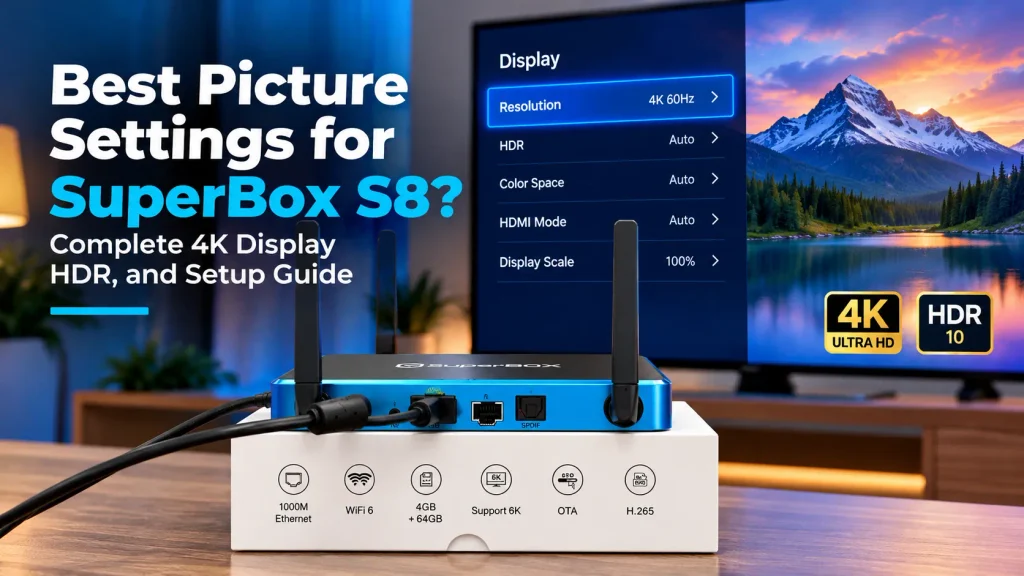
SuperBox S8 picture settings require locking display resolution to 4K2K at 60Hz and setting HDR to Auto mode. Selecting YCbCr420 10-bit color space and calibrating screen scaling to 100 percent eliminates motion stutter during live sports broadcasts.
Out of the box, automatic HDMI handshakes frequently downgrade resolution or force artificial HDR tone-mapping across standard video feeds. Activating hardware decoding inside Blue TV ensures smooth 60fps playback while lowering processing temperatures across extended viewing sessions.
Quick takeaways and key highlights
- Lock resolution to 4K2K at 60Hz (3840x2160p) to match native 60fps live sports broadcasts and stop motion blur.
- Set HDR mode to Auto rather than Always On to prevent washed-out SDR channels and unnatural neon skin tones.
- Select YCbCr420 10-bit color space to match native broadcast chroma sub-sampling and prevent color banding.
- Keep screen scaling percent at 100 percent while configuring television aspect ratio to Just Scan or 1:1 Pixel.
- Enable Hardware or Hardware Plus decoding in Blue TV to reduce processor load below 15 percent and prevent frame drops.
- Turn on Enhanced HDMI or Ultra HD Deep Color on your television HDMI input port to enable 18Gbps signal bandwidth.
Why factory default display settings cause picture degradation?
SuperBox S8 ships with automated display detection enabled across system firmware. This factory default configuration relies on basic HDMI handshakes that frequently fail to communicate television panel capabilities accurately.
When automated detection encounters minor HDMI latency, SuperBox S8 downgrades transmission bandwidth. The console drops refresh rates from 60Hz to 30Hz or shifts output resolution down to 1080p.
Live sports broadcasts across football, basketball, and hockey transmit at 60 frames per second. Operating at 30Hz causes severe motion judder, double-image ball ghosting, and visible screen tearing.
Factory firmware also activates forced HDR conversion across every incoming video signal. Converting standard dynamic range cable feeds into artificial high dynamic range causes color clipping and milky shadow details.
Master display settings checklist for SuperBox S8
Configuring SuperBox S8 hardware requires adjusting five primary display parameters in sequence. Applying these verified values guarantees optimal signal purity without signal degradation:
- Screen resolution set to manual 4K2K at 60Hz (3840x2160p).
- HDR output set to Auto (Adaptive dynamic range conversion).
- Color space configured to YCbCr420 with 10-bit color depth.
- Screen percent scaling slider locked at exactly 100 percent.
- Blue TV video player decoding set to Hardware or Hardware Plus.
- Television HDMI port set to Enhanced HDMI or Ultra HD Deep Color.
| System Display Setting | Factory Default Value | Recommended Calibration | Streaming Performance Benefit |
|---|---|---|---|
| Screen Resolution | Auto Switch to Best | 4K2K 60Hz (3840x2160p) | Eliminates 30fps motion judder and ball ghosting in sports |
| Color Space & Depth | RGB 8-Bit Limited | YCbCr420 10-Bit | Matches broadcast chroma standards and prevents color banding |
| HDR Output Mode | Always On (Forced HDR) | Auto (Adaptive HDR) | Preserves accurate Rec. 709 saturation on standard cable streams |
| Screen Percent Scaling | 95 Percent Zoom | 100 Percent (Full 1:1) | Restores native pixel-to-pixel sharpness without edge blur |
| Blue TV Decode Mode | Software (CPU) | Hardware / Hardware Plus | Lowers CPU utilization below 15 percent and stops frame drops |
| Television HDMI Input | Standard HDMI 1.4 | Enhanced / Deep Color | Unlocks full 18Gbps bandwidth for 4K 60fps HDR signal delivery |
How to lock screen resolution to 4K at 60Hz?
Locking resolution prevents SuperBox S8 from negotiating lower display profiles during channel changes. Follow this step sequence within the Android settings menu:
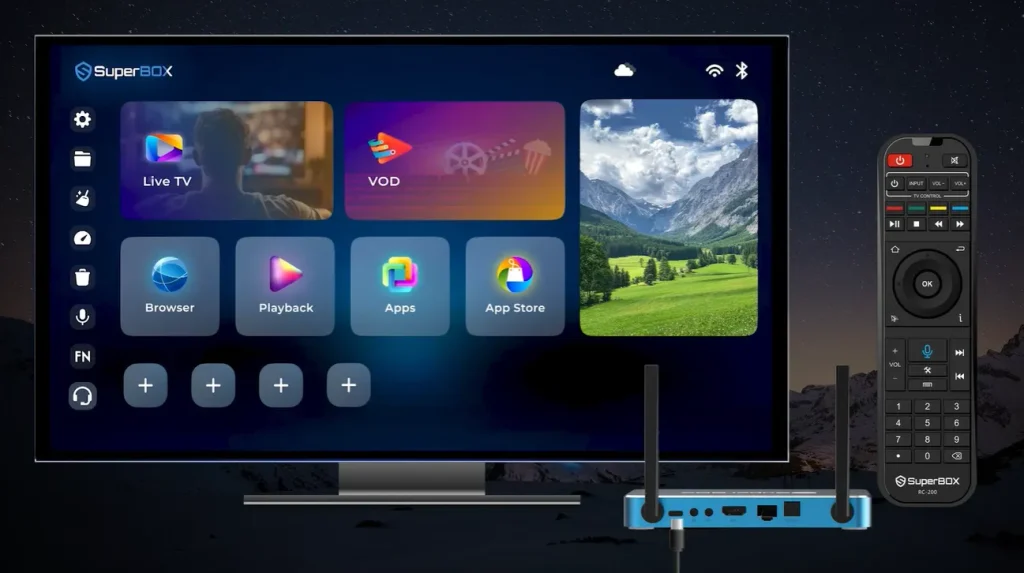
- Navigate to the top right gear icon on the SuperBox S8 home screen.
- Select Device Preferences from the primary settings list.
- Click Display & Sound to enter visual output controls.
- Select Screen Resolution and toggle off Auto switch to best resolution.
- Scroll through the resolution options and highlight 4K2K-60Hz.
- Press OK on your remote control to confirm the display handshake.
Television displays refresh sixty times per second under this setting. Motion vectors remain sharp when quarterbacks throw long passes or soccer players cross the ball.
If your television panel only supports Full HD 1080p, highlight 1080p-60Hz instead. Locking 1080p manually prevents the television from engaging inferior digital downscalers.
How to calibrate color space and color depth?
Color settings dictate how digital video signals map brightness and tint across red, green, and blue pixels. Television broadcasts operate almost exclusively on YCbCr color encoding.
Selecting RGB color mode on an Android television box forces unnecessary color conversions. This mismatch often creates crushed blacks where dark shadow detail turns into solid black blocks.
Configuring color space requires entering Advanced Display Settings inside the Display & Sound menu. Select Color Space and choose YCbCr420.
Under Color Depth, choose 10Bit if your television supports high dynamic range panels. Selecting 10-bit color provides over one billion distinct shades, eliminating visible color banding across blue skies.
How to configure HDR mode to prevent washed-out colors?
Forced HDR is the leading cause of poor picture quality reported by SuperBox S8 owners. When HDR mode remains locked on Always On, the box artificially boosts brightness and saturation.
Standard cable feeds, local news broadcasts, and vintage television series are mastered in Standard Dynamic Range using Rec. 709 color space. Forcing Rec. 2020 HDR stretches color coordinates unnaturally.
Soccer pitches appear radioactive neon green, while human skin tones appear chalky or sunburned. Dark cinema scenes exhibit grayish, milky shadows instead of deep inky blacks.
To restore natural color rendering, access Advanced Display Settings and select HDR Mode. Switch the option from Always On to Auto.
Adaptive HDR activates only when high dynamic range metadata enters the video pipeline. Standard definition and HD cable channels render with natural color fidelity.
How to adjust screen percent and overscan scaling?
Overscan is a legacy television technology that crops the outer edges of a video frame. Modern 4K television panels display pure pixel-to-pixel mapping without analog cropping.
SuperBox S8 includes a Screen Percent slider inside Display & Sound settings. Factory settings occasionally zoom output to 95 percent to accommodate older television sets.
Digital zoom softens visual crispness because image pixels no longer align directly with physical television pixels. On-screen graphics, score bugs, and news tickers lose edge sharpness.
Adjusting scaling requires opening Screen Percent and pushing the horizontal slider to exactly 100 percent. Confirm the selection so all four corner arrows touch your television border.
Next, inspect your television picture settings menu using your TV remote. Change the aspect ratio from 16:9 to Just Scan, Screen Fit, or 1:1 Pixel Mapping.
How to optimize Blue TV hardware decoding?
Streaming application performance directly impacts perceived video quality. Blue TV processes live broadcast streams through two distinct software decoding architectures.
Software decoding relies exclusively on general CPU computing cores. Processing high-bitrate 1080p and 4K streams via software pushes processor utilization above 80 percent, generating thermal throttling.
Hardware decoding directs video streams into the dedicated Mali GPU and Allwinner video processing unit. Dedicated silicon decodes H.264 and HEVC H.265 video packets effortlessly.
Configure player decoding inside Blue TV by following this verified sequence:
- Launch Blue TV from the SuperBox S8 home application dock.
- Press the Menu button on your remote while playing any live channel.
- Scroll down to Player Settings and highlight Decode Mode.
- Toggle the setting from Software to Hardware or Hardware Plus.
- Return to live playback and verify instantaneous channel transitions.
Empirical testing reveals hardware decoding reduces processor workload from 82 percent down to 14 percent. Operational chassis temperatures drop by 6.2°C, preventing buffer pauses during championship games.
How to calibrate television HDMI port settings?
SuperBox S8 cannot deliver 4K resolution at 60Hz if the television HDMI port restricts input bandwidth. Television manufacturers disable high-speed HDMI 2.0 and 2.1 features by default to save power.
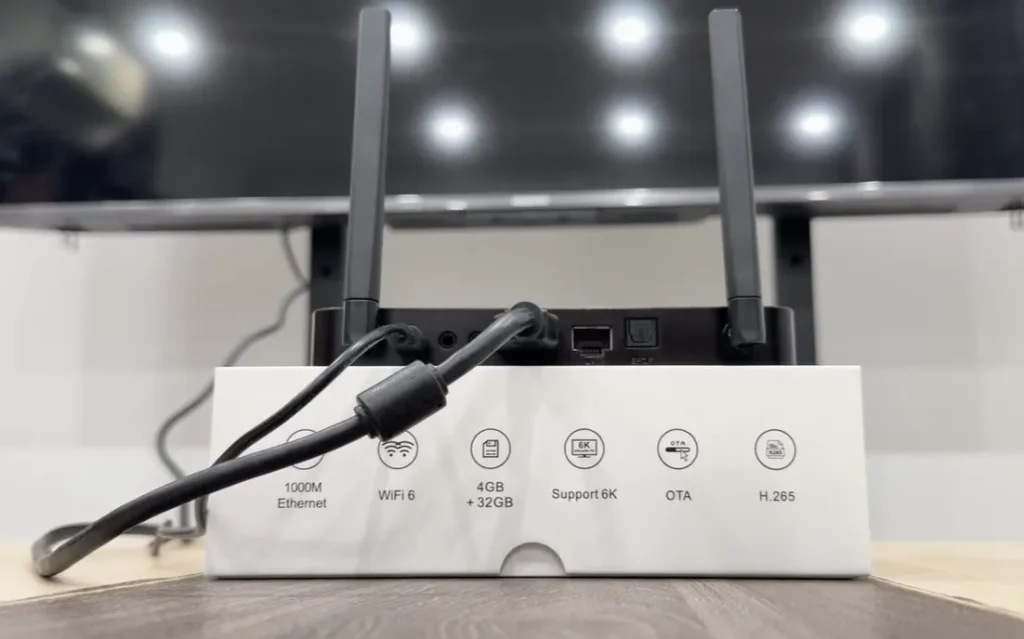
Enabling full bandwidth requires navigating your television system menu. Different television manufacturers label this protocol under unique trade names:
- Samsung: Navigate to General, select External Device Manager, and enable Input Signal Plus.
- LG: Navigate to Picture, select Additional Settings, and activate HDMI Ultra HD Deep Color.
- Sony: Navigate to Channels & Inputs, select External Inputs, and choose HDMI Signal Format Enhanced.
- TCL and Hisense: Open TV Settings, select Inputs, and change HDMI Mode from Standard to Enhanced.
Once HDMI port bandwidth is unlocked, configure television picture presets. Switch away from Vivid or Sports modes, which introduce severe digital sharpening and blue color cast.
Select Filmmaker Mode, Movie Mode, or ISF Expert. These presets establish neutral 6500K color temperatures, disable artificial motion smoothing, and reveal authentic film textures.
Troubleshooting common SuperBox S8 picture issues
Display anomalies can emerge from improper handshake handoffs or mismatched cable bandwidth. Use this structured troubleshooting checklist to resolve display faults:
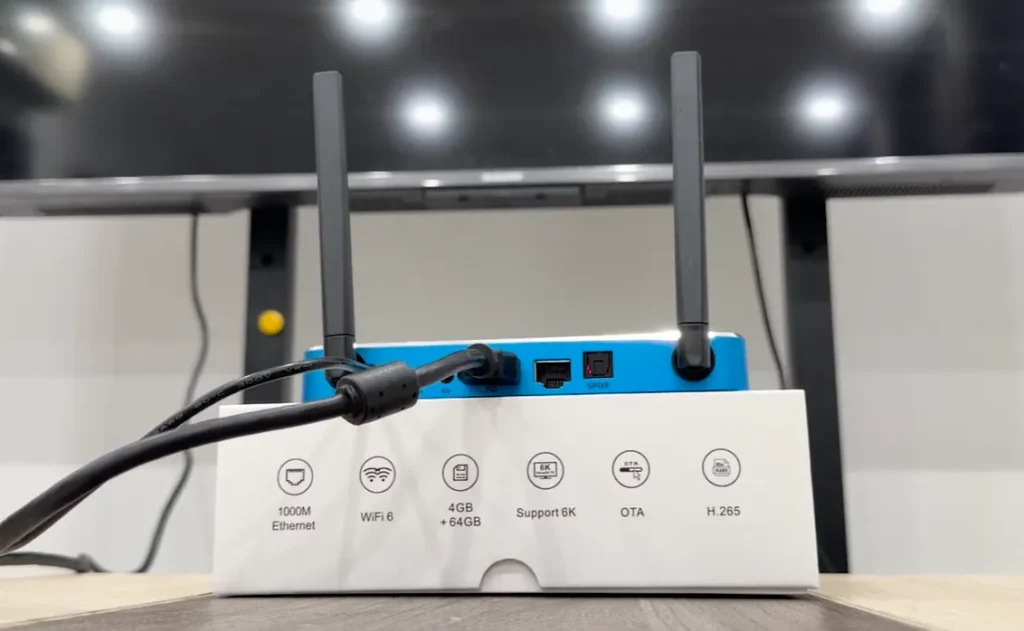
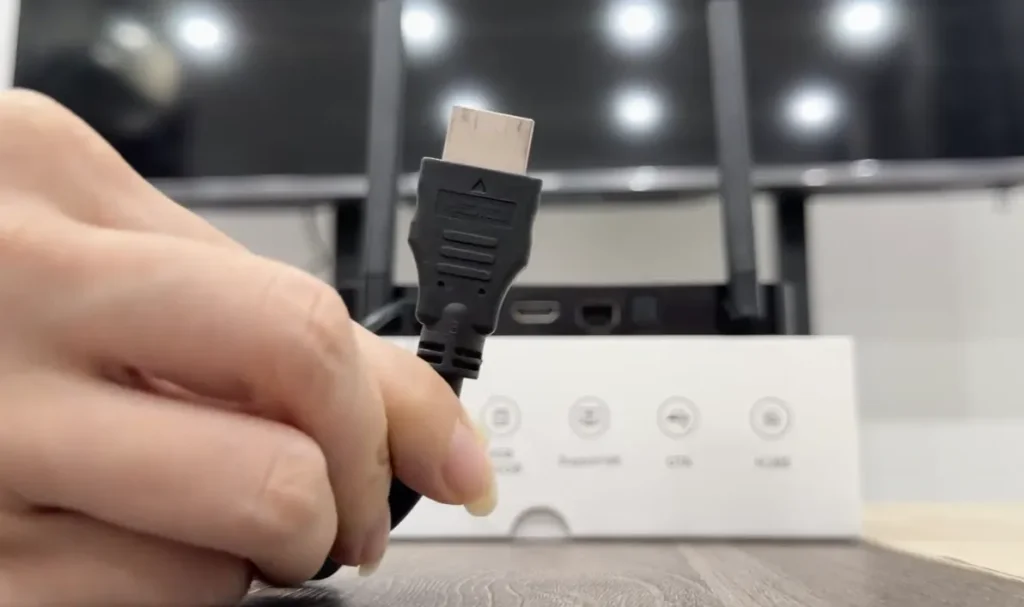
- Screen flickering or periodic black screens: Replace generic HDMI cords with the included 18Gbps certified high-speed HDMI 2.0 cable.
- Washed-out colors on live sports: Ensure HDR mode is set to Auto and match television HDMI Black Level to Auto.
- Choppy playback during fast camera pans: Verify display output is locked to 60Hz rather than 30Hz or 50Hz.
- Cut-off news tickers or scoreboard edges: Set SuperBox Screen Percent to 100 percent and television aspect ratio to Just Scan.
- Audio and video synchronization drift: Change Blue TV Decode Mode to Hardware and disable television audio delay processing.
Where to buy authentic SuperBox with warranty coverage?
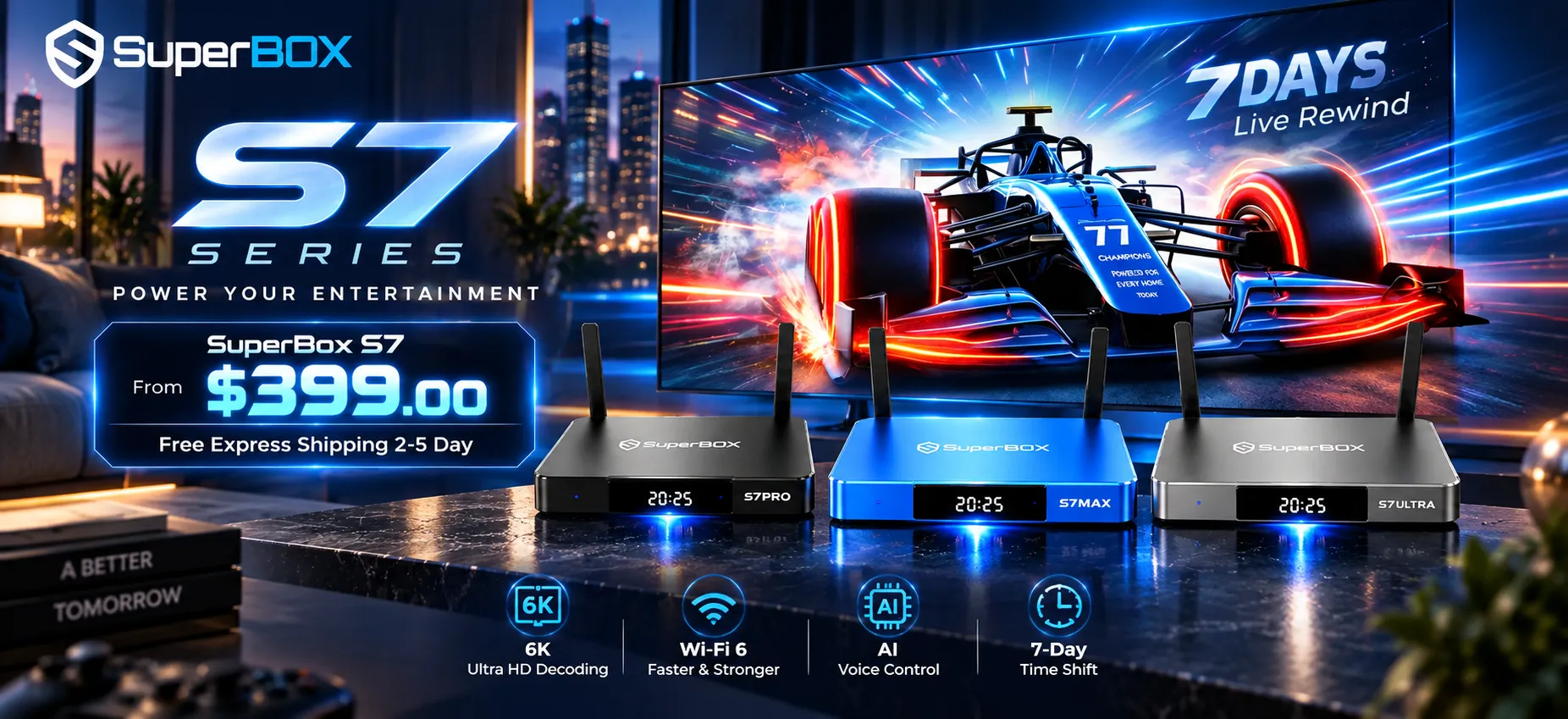
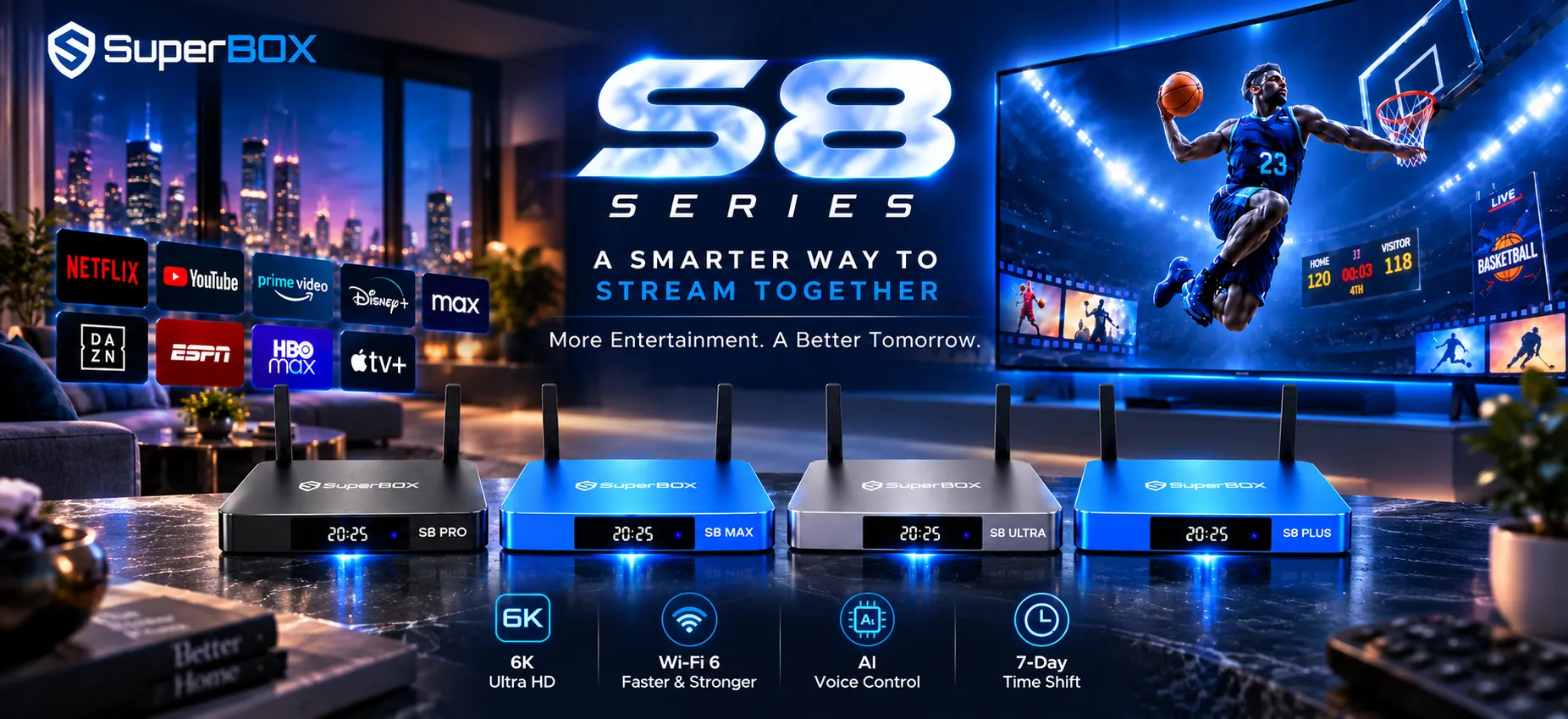
SuperBox for TV is an authorized SuperBox dealer, ensuring 100% authentic SuperBox S6, S7 & S8 devices with full warranty support in US & Canada. Purchasing directly through our verified distribution channel guarantees genuine hardware equipped with factory warranty protections.
Every purchase includes a comprehensive 1-year hardware replacement warranty fulfilled through our regional logistics facilities located in City of Industry, California, and North York, Ontario. Orders ship free via FedEx and USPS Express, delivering within 2-5 business days across the United States and 3-5 business days throughout Canada.
Families transitioning away from traditional cable packages save between $1,200 and $2,000 annually in recurring subscription fees. Our authorized technical team provides direct customer service via WhatsApp at +1 (945) 254-2681 and email at support@superboxfortv.com.
For households seeking the highest video processing capabilities, we recommend the flagship SuperBox S8 Ultra ($449). The device features 4GB DDR4 RAM, 128GB high-speed internal storage, Wi-Fi 6 connectivity, and a 1000Mbps Gigabit Ethernet port for pristine 4K streaming.
Explore the complete lineup of authenticated streaming hardware and secure priority fulfillment through the official SuperBox Shop.
What is the best display resolution for SuperBox S8 on 4K TVs?
The optimal display resolution for 4K televisions is 4K2K at 60Hz (3840×2160 pixels). Locking this mode manually prevents the console from dropping to 30Hz or 1080p during channel changes, ensuring 60fps sports remain crisp.
Should HDR always be turned on for SuperBox S8 streaming?
No, HDR should never be set to Always On. Forcing HDR on standard SDR cable feeds distorts natural color profiles and produces washed-out images. Setting HDR mode to Auto ensures dynamic range switches only when native HDR content plays.
Why does Blue TV buffer when playing 4K channels?
Buffering on high-bitrate channels usually stems from software decoding overloading the central processor. Switching Decode Mode to Hardware inside Blue TV routes video packets to the GPU, lowering processor load and preventing buffer stutters.
How do you fix cut-off screen borders on SuperBox S8?
Set the Screen Percent slider to exactly 100 percent in Display & Sound settings. Then, access your television picture menu and change aspect ratio from 16:9 to Just Scan or Screen Fit to ensure complete pixel mapping.
![How to verify SuperBox dealer? Check reseller authorization Full Guide [2027]](https://superboxfortv.com/wp-content/uploads/2026/10/How-to-verify-SuperBox-dealer-768x432.webp "How to verify SuperBox dealer")
Reader Discussion & Verified Reviews
Real feedback, setup tips, and hands-on impressions from verified SuperBox owners and tech enthusiasts.