

When a SuperBox stops working, the failure almost always stems from power adapter sleep lockups, HDMI resolution handshake mismatches, corrupted app cache, or temporary server maintenance rather than permanent hardware breakdown.
Over eighty percent of everyday issues resolve immediately by performing a 60-second cold power reboot, toggling Wi-Fi off when using Ethernet, or clearing the streaming app cache in system settings.
Diagnosing the Specific Failure Symptom on Your SuperBox
Before applying random fixes, identifying the exact symptom narrows down whether your issue involves power delivery, audio-video transmission, local software, or remote content servers.
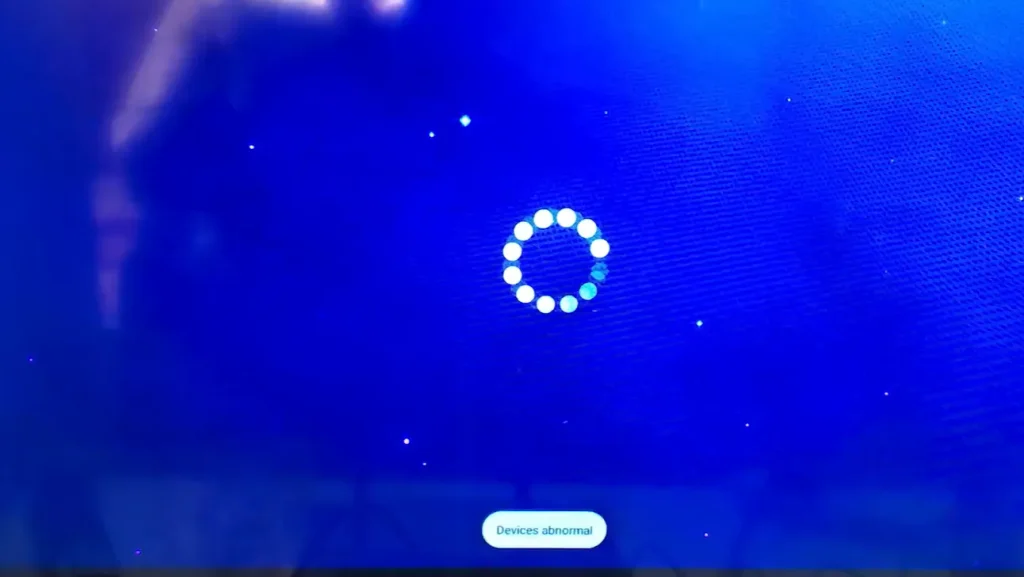
SuperBox operational problems typically fall into five distinct categories:
- Power Delivery Failure: The front LED indicator remains completely dark or stays locked on a red standby light that ignores remote power clicks.
- Video Display Outage: The console powers on with a blue front display, but your television screen reports no signal or remains completely black.
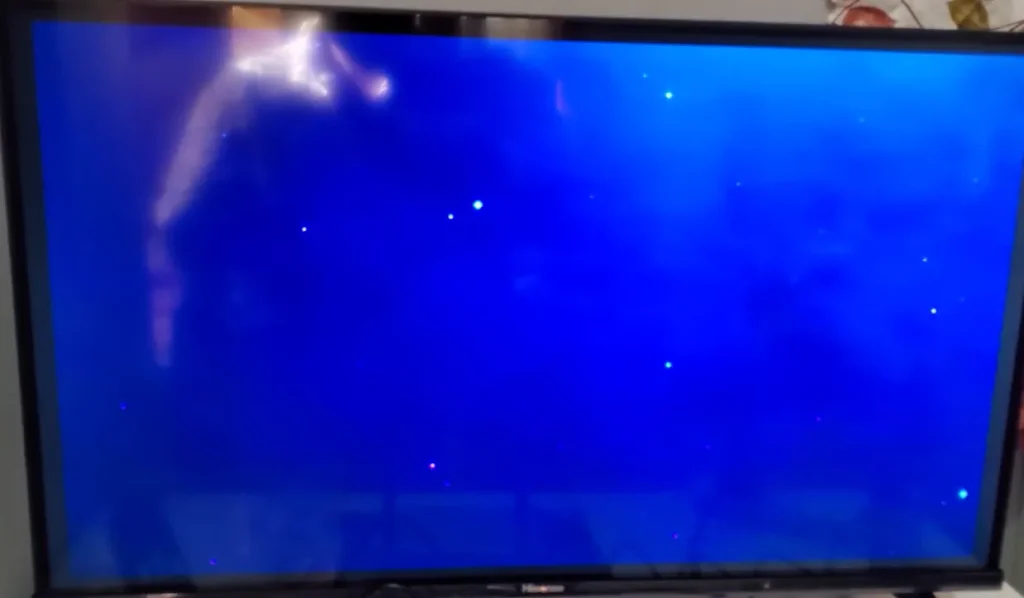
- Blank Home Screen: The television receives a signal, but displays an empty blue desktop background with missing application icons.
- Application Crashes: The system boots normally, but opening Blue TV or Blue VOD results in immediate crash-backs or endless loading circles.
- Network Disconnects: The device powers on and navigates menus, but streaming feeds report connection failed despite active home internet.
If your console abruptly shuts down during playback, review our targeted guide on superbox keeps turning off randomly for power circuit solutions.
Resolving Power Failures and Standby Red Light Lockups
The front panel LED provides direct feedback regarding system power states. A blue light indicates active operation, a red light signals standby mode, and an unlit display suggests an electrical interruption.
When a device remains stuck in standby mode or fails to turn on, power delivery circuitry or standby memory locks are usually responsible.
Follow these steps to restore power:
- Test the Power Adapter: Inspect the 5V 2A DC power adapter for physical damage. Ensure the barrel plug fits securely into the rear DC 5V power port.
- Bypass Power Strips: Plug the power brick directly into a wall outlet rather than an overloaded surge protector or extension cord.
- Perform a Cold Power Cycle: Disconnect the power adapter from the back of the SuperBox. Wait sixty seconds to allow internal capacitors to discharge fully before reconnecting power.
- Verify Remote Control Function: If the front LED stays red, the box may simply be resting in standby. Check remote batteries and confirm infrared line of sight.
If your remote fails to wake the console from standby, follow our troubleshooting steps in our superbox remote not working tutorial.
Fixing Black Screen and HDMI No Signal Errors
A black television screen while the SuperBox displays a solid blue light indicates that the console is running, but video signals cannot reach your television panel.
This failure usually stems from an HDMI handshake mismatch, incorrect television input selection, or an unsupported display resolution profile.
Apply these display recovery steps:
- Verify Television Source Input: Use your television remote to confirm that the active input channel matches the physical port connected to your SuperBox, such as HDMI 1 or HDMI 2.
- Reseat the HDMI Cable: Unplug both ends of the HDMI cable, check for dust or bent connector pins, and reconnect firmly.
- Swap Ports and Cables: Move the HDMI cable to an alternate port on your television. If the screen remains blank, test with a certified high-speed HDMI 2.0 cable.
- Resolve Resolution Mismatches: If the box was previously set to 4K 60Hz and connected to an older 1080p television, connect the box to a 4K display temporarily to adjust display settings back to Auto.
For an exhaustive walkthrough of HDMI communication errors, consult our full guide on superbox hdmi no signal fix.
Restoring Missing Home Screen Icons and Fixing Blank Blue Screen
A widely documented glitch occurs when the SuperBox home screen launcher encounters an interrupted background update, resulting in a blank blue desktop with zero application icons.
This occurs when Launcher X fails to complete its installation before the console restarts. Fortunately, you can restore all home screen icons without losing your saved data.
Follow these steps to restore Launcher X:
- Open Quick Settings: Press the Gear Button on your remote control to open the settings sidebar on the right side of the screen.
- Navigate to Applications: Select Apps and click on See all apps.
- Locate System Launcher: Scroll down to highlight Launcher X from the list of installed applications.
- Uninstall Corrupted Updates: Select Uninstall updates and confirm with OK. Next, select Clear cache to flush temporary files.
- Reinstall from App Store: Open the central App Store, search for Launcher X, update to the latest build, and press the Home button to reload all icons.
If the settings menu is unreachable, you can initiate a reset by pressing the 0 key eight times consecutively on your remote control from the main screen. If apps remain missing, follow our tutorial on restore superbox app store after factory reset.
Fixing Blue TV and Blue VOD Not Loading Channels
When the SuperBox interface operates normally but streaming applications refuse to open or load channel feeds, the issue generally lies within app cache corruption or server maintenance.
Testing both Blue TV and Blue VOD helps pinpoint the root cause. If Video On Demand plays movies perfectly while Live TV refuses to load, remote live server clusters are undergoing temporary maintenance.
Apply these application recovery steps:
- Verify Server Status: If multiple channels fail simultaneously, check community owner forums to confirm if scheduled maintenance is taking place. In server downtime scenarios, service typically restores within a few hours.
- Switch to Backup TV: Open the pre-installed Backup TV application, which routes traffic through secondary cloud clusters during primary server congestion.
- Clear Application Cache: Navigate to Settings, select Apps, choose Blue TV, and select Clear cache. Avoid selecting Clear Data unless you wish to reset custom channel favorites.
- Verify App Permissions: In the app details menu, select Permissions and confirm that Storage and Network permissions remain enabled.
For deeper fixes regarding live channel playback errors, explore our guide on superbox blue tv not working fix and our walkthrough on how to clear cache on superbox.
Repairing Wi-Fi and Ethernet Internet Connection Dropouts
Live high-definition broadcasts require stable, uninterrupted data flow. When network handshakes stall, channels display continuous buffering wheels or report no network connected.
Local routing table conflicts and IP lease collisions frequently disrupt playback even when household internet operates normally on other devices.
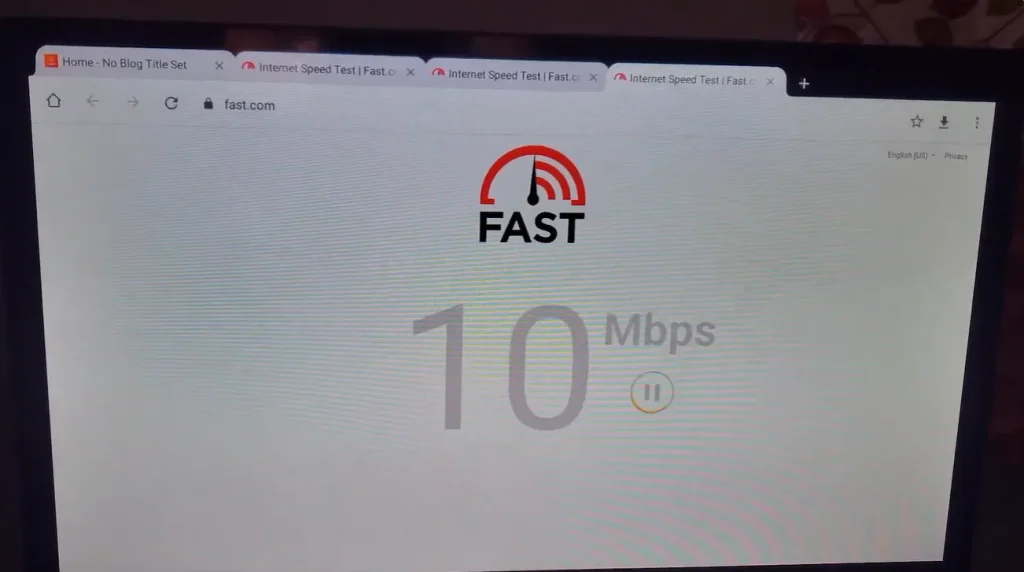
Follow these network stabilization techniques:
- Resolve Interface Priority Conflicts: When connecting via Ethernet, go to Settings, open Network & Internet, and turn Wi-Fi Off. This forces Android to route traffic exclusively through the wired interface.
- Power Cycle Network Hardware: Unplug your modem and router for sixty seconds before plugging them back in, allowing the router to assign fresh DHCP leases.
- Configure High Speed Public DNS: Change IP settings from DHCP to Static. Set Primary DNS to 1.1.1.1 (Cloudflare) and Secondary DNS to 8.8.8.8 (Google) to bypass slow provider resolvers.
- Activate a VPN Tunnel: If your broadband provider throttles IPTV video packets during peak hours, encrypting your data stream restores full bandwidth.
If your console experiences persistent wired dropouts, review our walkthrough on superbox not connecting to ethernet and our setup guide on how to connect superbox to wifi. To protect against traffic shaping, consult our guide on the best vpn for superbox.
Performing a Clean Factory Reset as the Ultimate Software Fix
If your SuperBox continues experiencing system crashes, frozen interfaces, or persistent software errors after exhausting all basic fixes, a clean factory reset restores original firmware.
A factory reset wipes locally cached data, eliminates corrupted configuration files, and returns the operating system to factory specifications.
Follow these steps to perform a complete system reset:
- Open Settings: From your home screen, click the Gear Icon in the upper right corner.
- Navigate to Device Preferences: Select Device Preferences and scroll down to the About section.
- Initiate Reset: Select Factory reset and choose Erase everything to confirm the system restoration.
- Complete Initial Setup: Once the console reboots, select your preferred language, connect to your home network, and reinstall your applications.
For step-by-step restoration guidance after wiping your system, review our comprehensive tutorial on how to factory reset superbox.
Comprehensive SuperBox Not Working Troubleshooting Matrix
Different operational symptoms indicate distinct underlying issues. The troubleshooting matrix below matches observable malfunctions with proven technical solutions.
| Observed Malfunction | Most Probable Root Cause | Verified Corrective Action |
|---|---|---|
| No Power Light on Front Panel | Defective power supply or disconnected DC plug | Test wall outlet directly and replace 5V 2A power adapter |
| Red Light Stays On Without Response | Device locked in standby or remote dead | Replace remote batteries and perform 60-second cold reboot |
| Blue Light On but Screen Shows No Signal | HDMI handshake mismatch or wrong TV source | Reseat HDMI cable, test HDMI Port 2, and verify TV input |
| Blank Blue Screen with No App Icons | Interrupted Launcher X background update | Uninstall Launcher X updates in App Settings and update via App Store |
| Live TV Shows Check Network Error | Local app cache corruption or server outage | Clear Blue TV cache and switch to the Backup TV application |
| Console Freezes After 30 Minutes of Use | Processor thermal throttling from poor airflow | Elevate console base half an inch to clear bottom intake vents |
If your system experiences persistent screen freezes during broadcasts, review our dedicated guide on superbox keeps freezing for thermal cooling tips.
Video Walkthrough for Troubleshooting SuperBox Issues
Visual demonstrations clarify hardware checks and menu navigation significantly. The video tutorial below demonstrates practical troubleshooting routines to restore your SuperBox when it stops working.
In this video walkthrough, you will see how power resets, cache clearances, HDMI checks, and application updates resolve everyday streaming errors. Applying these visual guidelines ensures swift recovery.
Why Upgrading to SuperBox S8 Ultra Guarantees Seamless Reliability
Older streaming boxes equipped with legacy processors and limited RAM struggle under modern high-bitrate streaming loads. Upgrading to the flagship SuperBox S8 Ultra ($449) eliminates hardware bottlenecks permanently.
The SuperBox S8 Ultra features an upgraded quad-core processing platform paired with 4GB of fast DDR4 RAM and 64GB of internal storage. Its advanced aluminum heatsink design prevents thermal throttling, while dual-band Wi-Fi 6 and gigabit Ethernet ensure buffer-free playback.
With optimized firmware and regular automated system updates, the S8 Ultra delivers the most reliable television streaming performance on the market.
Where to Buy Authentic SuperBox Hardware with Warranty Coverage
Purchasing streaming equipment requires complete confidence in genuine components, authorized firmware, and dependable warranty coverage. Unauthorized marketplaces frequently distribute modified or cloned hardware that lacks official technical support.
SuperBox for TV is an authorized SuperBox dealer, ensuring 100% authentic SuperBox S6, S7 & S8 devices with full warranty support in US & Canada. When you invest in your home entertainment setup through the superbox official website, you gain comprehensive buyer protections:
- Free Shipping: Fast 3 to 5 business day delivery across the United States and Canada with full real-time package tracking.
- Free Lifetime Tech Support: Dedicated technical specialists available 24/7 via live chat, email, and phone for troubleshooting assistance.
- 30-Day Money-Back Guarantee: Hassle-free return policy if you are not completely satisfied with your streaming hardware performance.
- 1-Year Manufacturer Warranty: Full replacement coverage safeguarding against any hardware defects or system component failures.
- 100% Authentic Hardware: Direct factory units guaranteed genuine without modified firmware, unauthorized alterations, or security risks.
If you are configuring a newly received media console, follow our step-by-step setup guide on how to set up superbox s7 for optimal installation.
![How to verify SuperBox dealer? Check reseller authorization Full Guide [2027]](https://superboxfortv.com/wp-content/uploads/2026/10/How-to-verify-SuperBox-dealer-768x432.webp "How to verify SuperBox dealer")
Reader Discussion & Verified Reviews
Real feedback, setup tips, and hands-on impressions from verified SuperBox owners and tech enthusiasts.