

Watching live television on SuperBox delivers an expansive home entertainment experience without monthly cable bills. With over 1,700 live channels spanning national networks, local news, and live sports, navigating the platform smoothly helps you find your favorite programs in seconds.
The primary gateway for live broadcasts is the dedicated Blue TV application, engineered specifically to leverage the hardware decoding power of SuperBox devices. Mastering its interface, electronic program guide, and remote shortcuts transforms how you browse live content.
This comprehensive guide covers everything from initial channel launching and category navigation to remote control shortcuts, custom channel groupings, and network optimization for buffer-free viewing.
How live streaming works on the SuperBox platform
SuperBox devices process live television broadcasts through optimized streaming servers linked directly to the device hardware identifier. Unlike conventional subscription apps that require recurring monthly logins, the native media engine authenticates automatically.
On the main launcher screen, the primary live television hub appears as the Live TV tile. Launching this tile opens Blue TV, the specialized application that aggregates and indexes live broadcast feeds from across North America and around the world.
Upon launch, the application loads the latest channel index and immediately resumes playback on the channel you watched during your previous session. This instant resume functionality mimics traditional cable television convenience.
Navigating the Blue TV interface and channel categories
Pressing the left arrow button on your remote control while watching any channel reveals the master category navigation sidebar. This organized menu breaks down thousands of channels into distinct categories.
| Category Name | Typical Content | Best Used For |
|---|---|---|
| All Channels | Complete index of 1,700+ live feeds | Browsing the entire catalog |
| Network TV | ABC, CBS, NBC, FOX, PBS, CW | Primetime shows and morning news |
| Regional Locals | City and state broadcast affiliates | Watching hometown local news |
| Sports Networks | ESPN, NFL Network, RedZone, NBA TV, MLB | Live games and tournament coverage |
| 24/7 Channels | Non-stop movie marathons and classic sitcoms | Casual binge watching |
| Pay-Per-View | Live fight events and championship bouts | Special weekend sporting events |
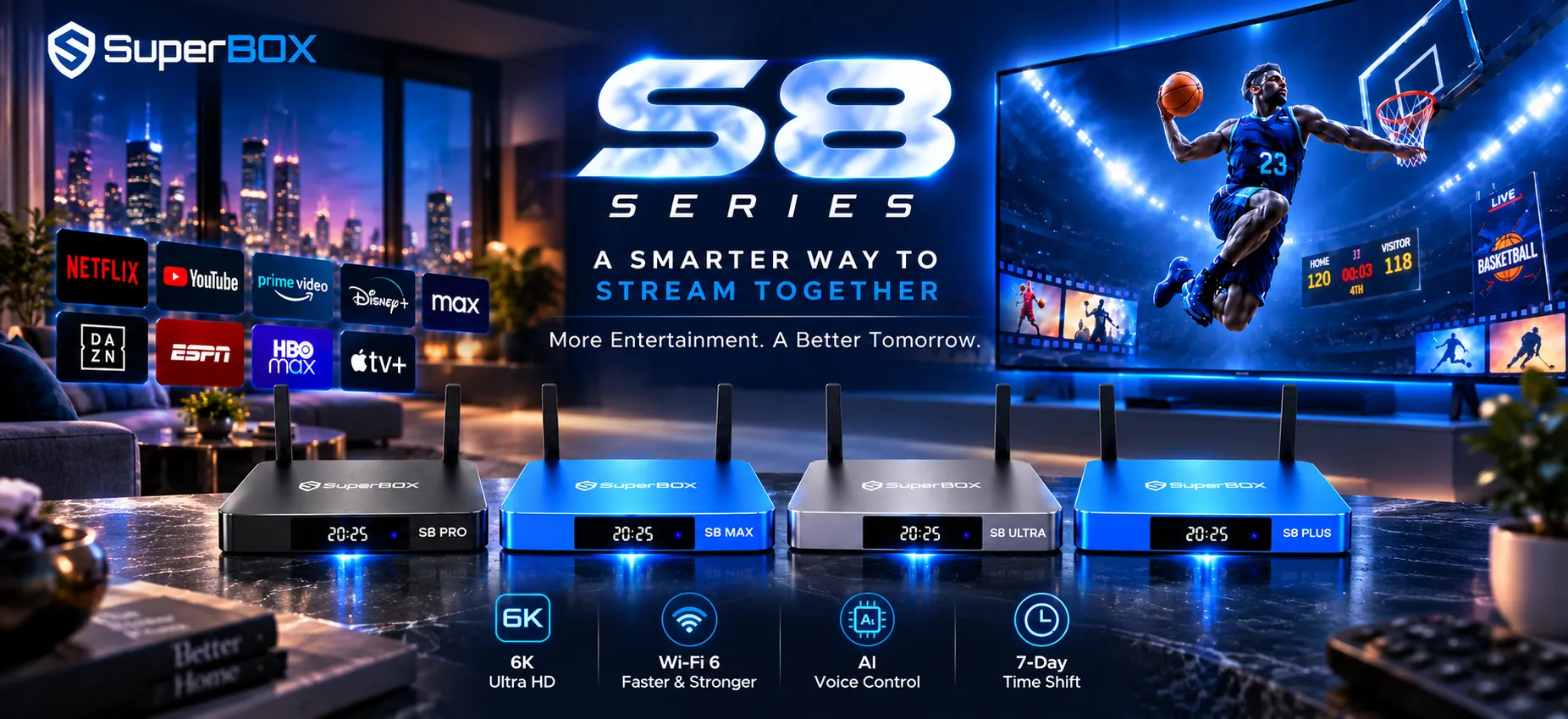
On modern S8 series hardware, the software introduces a dedicated Sports section. This interface sorts live broadcasts by league, including NFL, NBA, MLB, NHL, MLS, and college sports, displaying game schedules and live scores directly beside channel previews.
Essential remote control shortcuts for seamless channel browsing
Scrolling manually through thousands of channels takes unnecessary time. Utilizing built-in remote shortcuts makes channel switching instantaneous and enjoyable.
Direct channel number entry
Every channel displays a dedicated numeric identifier on the left side of the channel list. Using the numeric keypad on your remote, enter the three or four-digit number to leap straight to that broadcast from any screen.
Voice search using the microphone button
Press and hold the blue microphone button on your Bluetooth remote and speak the name of a channel, sports team, or program. Saying keywords like ESPN, NFL RedZone, or Dallas Cowboys instantly filters the guide to relevant streams.
Quick cycling with page buttons
Use the Page Up and Page Down keys on your remote to jump through your ten most recently viewed channels. This feature proves invaluable on game nights when tracking multiple live matchups simultaneously.
Organizing your custom favorites and personalized channel groups
Creating a personalized favorites lineup eliminates the need to scroll through massive channel directories every evening. Setting up custom lists takes just a few clicks.
Open the channel guide by pressing the OK button while a live broadcast plays in full screen. Highlight the channel you want to save and hold down the OK button for three seconds.
A yellow star icon appears next to the channel name, confirming its addition to your Favorites folder. To remove a channel later, highlight it and hold the OK button again until the star turns off.
On the latest S8 series interface, viewers can also access the Add Group feature on the right-hand panel. This tool lets you create custom named folders, such as Sports Hub or Kids Zone, keeping household viewing habits perfectly organized.
Using the electronic program guide and time shift rewind
The electronic program guide provides schedule visibility across broadcast hours, while time-shift technology prevents you from missing key moments.
Press the OK button once while watching full-screen television to summon the interactive program guide. The guide shows current program titles, upcoming airings, and broadcast start times.
Allow three to five seconds for the guide data to populate when switching categories. The system downloads live schedule metadata directly from broadcast servers to ensure schedule accuracy.
Look for the small clock icon positioned beside the star on compatible channels. This icon indicates time-shift functionality, allowing you to rewind a live broadcast up to two hours to catch a play you missed.
Video demonstration of the SuperBox live TV interface
Reviewing live navigation on screen makes understanding menu layouts and remote shortcuts simple. Watch this official walkthrough demonstrating the Blue TV interface, category browsing, and EPG features.
Optimizing network settings to eliminate live stream buffering
Live high-definition video feeds require constant data throughput. Applying proper home network configurations ensures crystal-clear video quality without buffering wheel delays.
Connect your SuperBox via a hardwired Ethernet cable whenever possible. Direct Ethernet connections bypass wireless interference, providing stable packet delivery during high-traffic sports events.
If using Wi-Fi, connect to your router’s 5GHz frequency band rather than crowded 2.4GHz signals. The 5GHz band delivers faster data speeds and lower transmission latency.
Ensure your internet connection delivers at least 25Mbps download bandwidth for standard high-definition feeds and 50Mbps for 4K live broadcasts. You can test live bandwidth using the built-in network speed test tool on your home screen.
Troubleshooting common live TV playback issues
Minor software glitches or network hiccups can occasionally interrupt live playback. Use these community-proven troubleshooting steps to restore your stream promptly.
Channel displays a black screen or spinning wheel
Switch one channel up and then back down to force the video player to reconnect to the stream feed. If the issue continues, open the channel under Backup TV, which connects through an alternate server route.
Channel guide information appears blank
A blank guide typically indicates momentary server data synchronization. Wait five seconds on the category screen, or restart Blue TV from the home menu to refresh the electronic schedule database.
Voice search fails to register commands
Voice search requires active Bluetooth pairing between your remote control and the box. If the remote reverted to infrared mode, hold the Home and OK buttons simultaneously until the indicator light flashes, then complete pairing in Bluetooth settings.
App crashes back to the home screen
Cached data build-up can cause unexpected app closures. Navigate to Settings, choose Apps, select Blue TV, and click Clear Cache to eliminate corrupt temporary files without altering your saved favorites.
Why upgrading to the SuperBox S8 Ultra delivers the best live TV experience
Tired of sluggish channel switching, frame stutter during critical sports moments, and freezing apps on older hardware? The premium SuperBox S8 Ultra at $449 represents the ultimate live television streaming powerhouse on the market today.
Powered by 4GB of DDR4 RAM and an enhanced quad-core 64-bit processor, the S8 Ultra changes live channels in under half a second, eliminating black loading screens entirely. Its massive 128GB eMMC 5.1 high-speed internal storage effortlessly manages large app caches and background DVR recording sessions.
Unlike budget streaming sticks that throttle under heavy processing, the S8 Ultra features a solid aluminum unibody enclosure. This aircraft-grade casing operates as an active heatsink, keeping operating temperatures under 38.5 degrees Celsius during day-long live sports marathons.
Equipped with Wi-Fi 6 technology and a gigabit Ethernet port, the S8 Ultra ensures seamless reception during peak pay-per-view broadcasts. Investing $449 delivers outstanding financial value, saving cord-cutters between $1,200 and $2,000 every year by replacing expensive cable packages and equipment rental fees permanently.
Where to buy authentic SuperBox with warranty coverage
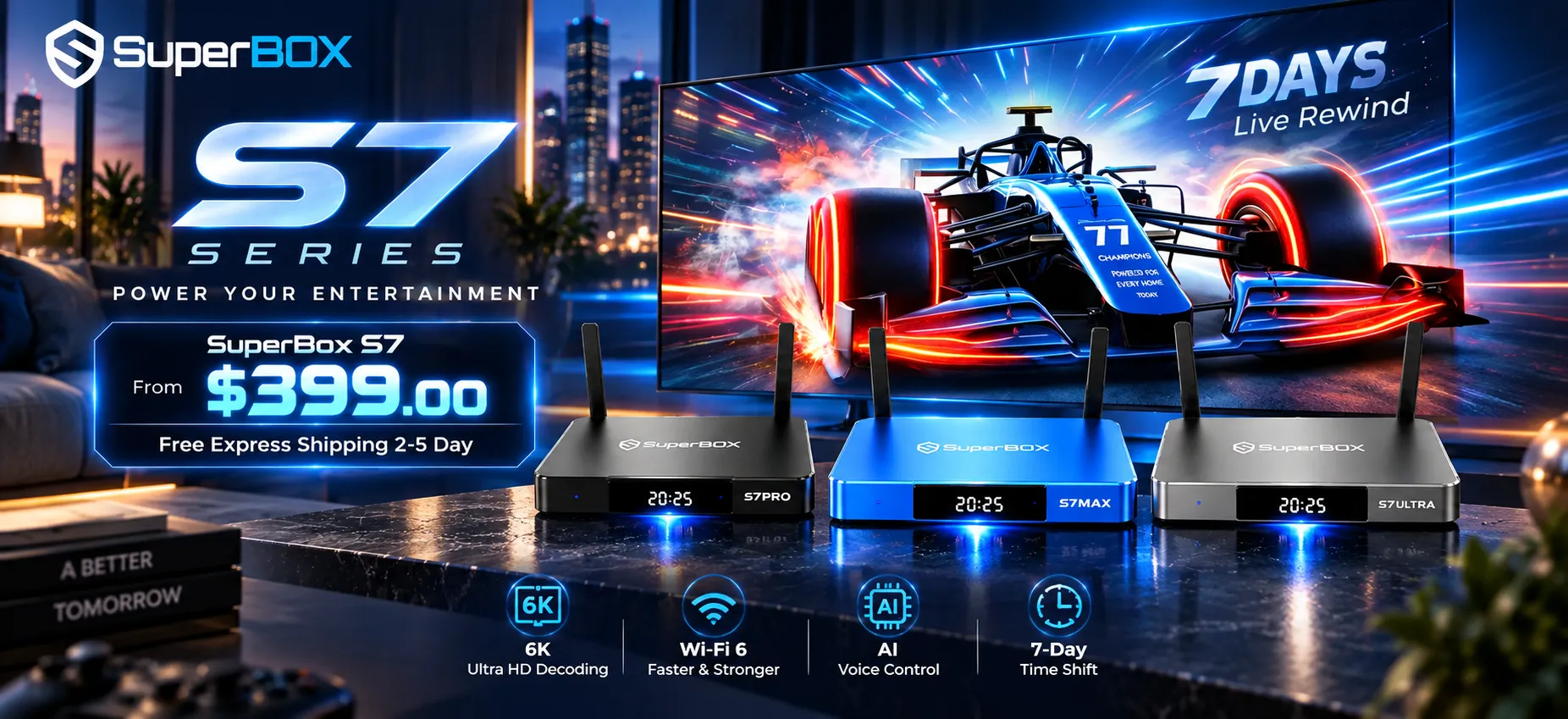
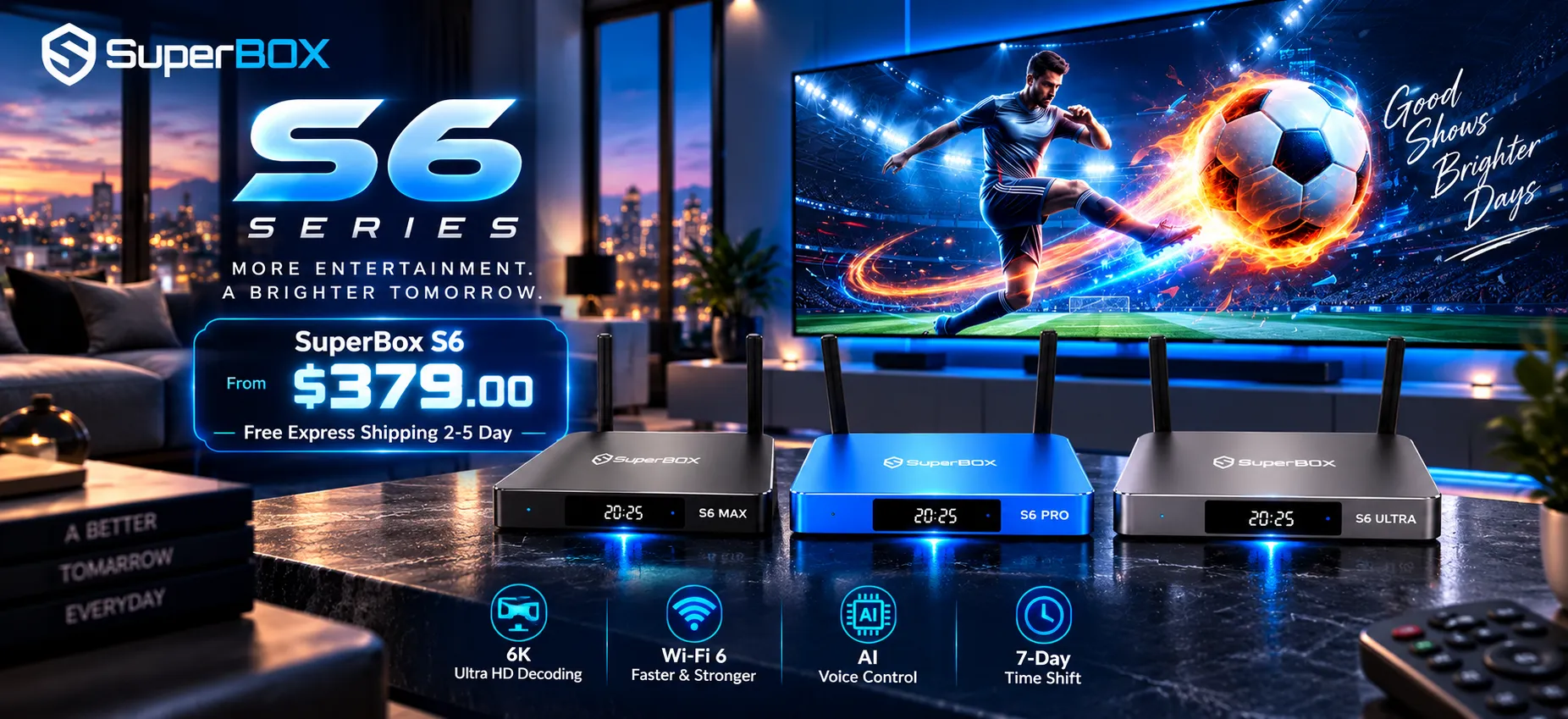
SuperBox for TV is an authorized SuperBox dealer, ensuring 100% authentic SuperBox S6, S7 & S8 devices with full warranty support in US & Canada. When investing in a high-performance streaming console, purchasing from an authorized distributor is essential to ensure genuine hardware, active server licensing, and reliable customer support.
At SuperBox for TV, customers receive 100 percent authentic, factory-sealed hardware backed by transparent retail guarantees:
- 1-Year direct hardware replacement warranty: Every console includes a full 365-day replacement policy supported directly by our customer care center in Anaheim, California.
- 30-Day money-back guarantee: Evaluate your SuperBox risk-free with complete return protection if the device does not meet your household entertainment needs.
- Free 2 to 5-day express shipping: All orders ship directly from domestic fulfillment centers via FedEx or USPS with real-time tracking numbers provided upon dispatch.
- $1,200 to $2,000 estimated annual savings: Replacing monthly cable subscriptions, equipment rental fees, and sports tier add-ons with a one-time purchase saves households thousands of dollars every year.
- 24/7 technical customer support: Get prompt assistance via live chat and email from knowledgeable technicians who understand device setup, network configuration, and system updates.
Explore the complete lineup of authentic consoles to secure genuine hardware with verified security authentication and fast domestic delivery.
Frequently asked questions about SuperBox live TV
How many live channels can you watch on SuperBox
SuperBox devices offer over 1,700 live channels spanning national broadcast networks, regional local stations, premium sports feeds, 24/7 channels, and international programming without monthly subscription fees.
Can you enter channel numbers directly on the remote
Yes, every channel features a unique numeric identifier displayed in the guide. You can enter the number directly using the remote control keypad to jump straight to that channel without browsing through category menus.
Why does a specific live channel show a black screen
A temporary black screen usually indicates a source stream interruption or momentary server synchronization. Toggling to an adjacent channel and back, or selecting the channel from the Backup TV section, typically resolves the issue immediately.
Does watching live TV on SuperBox require a monthly subscription
No, live television streaming on authentic SuperBox hardware operates entirely subscription-free. Access is authenticated through the device hardware identifier, eliminating monthly charges, rental equipment fees, and long-term contracts.
Reader Discussion & Verified Reviews
Real feedback, setup tips, and hands-on impressions from verified SuperBox owners and tech enthusiasts.