

SuperBox troubleshooting begins by isolating whether your issue stems from power delivery, HDMI signal handshakes, app cache corruption, or local wireless interference. Most common errors resolve within minutes without technical tools.
Performing a 60-second cold power reboot, clearing application cache in Blue TV, and switching to a wired Ethernet connection resolve over eighty percent of channel stalls, frozen loading bars, and buffering interruptions.
This master troubleshooting guide provides step by step diagnostic routines for blank screens, 98 percent loading loops, remote pairing failures, and server errors. Follow these verified methods to restore seamless playback.
Initial Quick Triage to Fix Common SuperBox Errors in 2 Minutes
Before adjusting complex system parameters, applying these three basic recovery actions resolves the majority of temporary software lockups.
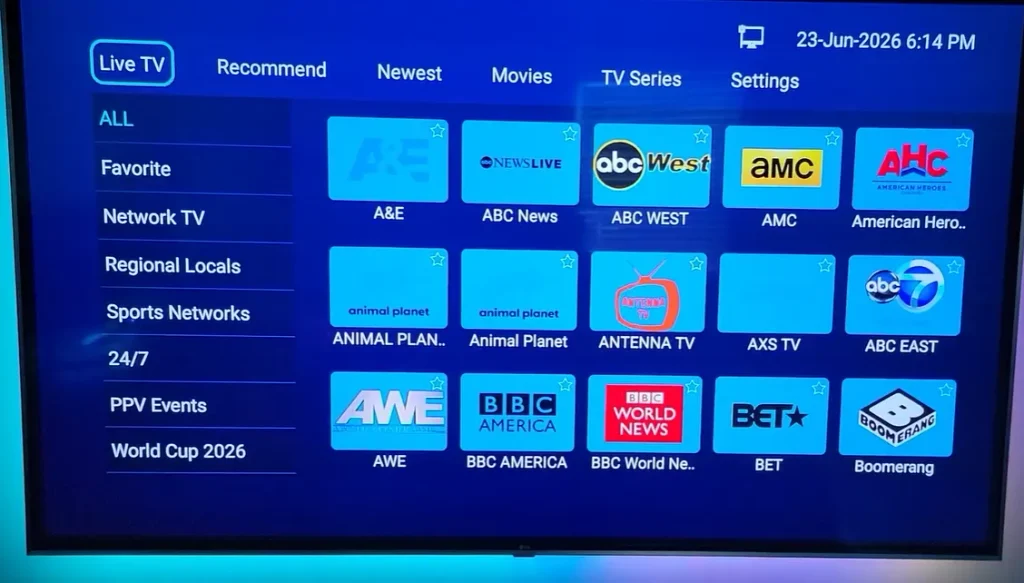
Follow these direct steps for an immediate performance refresh:
- Perform a Cold Power Cycle: Disconnect the power adapter from the back of your SuperBox. Wait sixty seconds to discharge internal capacitors before reconnecting power.
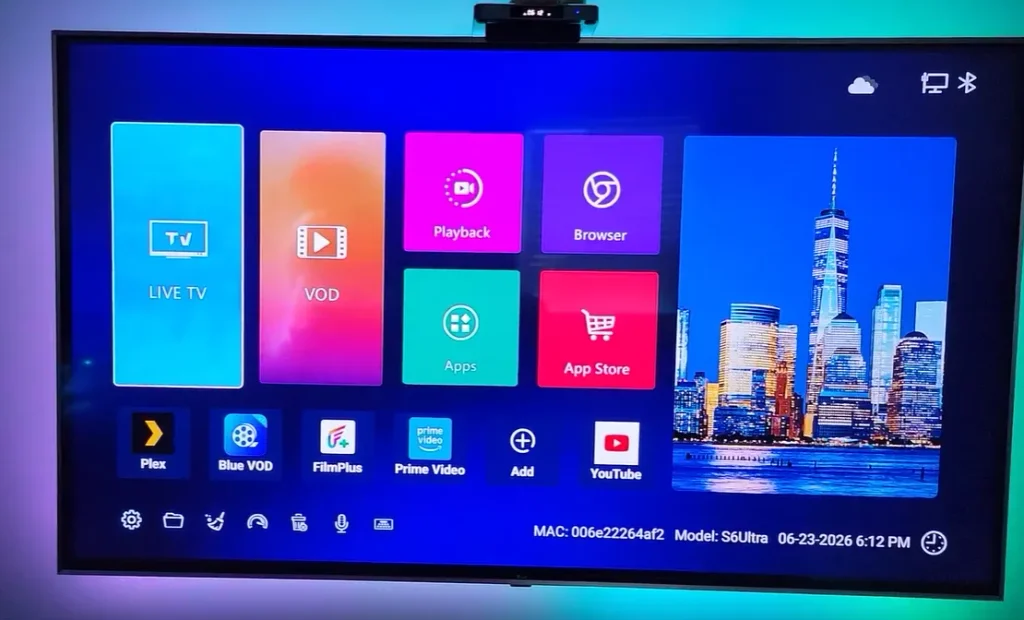
- Execute Memory Cleaner: Navigate to the bottom dock on your home screen and click the Broom Icon to purge idle background processes and reclaim active RAM.
- Restart via Remote Shortcut: Hold down the power button on your remote control for five seconds and select Restart from the popup menu.
If your console experiences general operating system failures or will not power on, explore our comprehensive guide on superbox not working for power circuitry solutions.
Fixing Channels Stuck at 98 Percent Loading and Playback Errors
A frequent problem reported across user communities is the live playback progress bar freezing at exactly 98 percent loading, often accompanied by Error 14113 or Token Socket Exception notices.
This stall occurs when fragmented playback buffer cache prevents the media player from completing its initial server handshake.
Apply these steps to resolve loading stalls:
- Open Settings: From your home screen, click the Gear Icon in the upper right corner.
- Access Applications: Select Apps and click on See all apps.
- Select Your Streaming App: Highlight Blue TV or Blue VOD from the list of installed applications.
- Purge Cache Memory: Select Clear cache to remove fragmented video chunks. Avoid selecting Clear Data unless you wish to reset your favorites.
- Configure Fast DNS: In Network Settings, switch IP settings to Static and set Primary DNS to 1.1.1.1 (Cloudflare) and Secondary DNS to 8.8.8.8 (Google) to eliminate domain lookup timeouts.
For deeper fixes regarding application crashes, explore our dedicated tutorial on superbox blue tv not working fix and our walkthrough on how to clear cache on superbox.
Resolving Video Buffering and Freezing During Live Broadcasts
Live streaming requires continuous data throughput. When video frames freeze while audio continues playing, the issue usually involves video decoder stalls or processor thermal throttling.
SuperBox consoles rely on passive aluminum heatsinks. When placed inside closed entertainment centers, heat builds up rapidly, causing the CPU to downclock from 1.5GHz to 500MHz to protect internal circuits.
Follow these steps to eliminate playback freezing:
- Elevate Console Base: Place rubber pads or small spacers under the four corners of your box to elevate it half an inch, enabling cooling airflow beneath the intake vents.
- Switch Video Decoder: While watching a live channel, press the Menu Button on your remote, select Settings, choose Decode Mode, and switch from Hardware to Software.
- Switch to Backup TV: During major championship sporting events, primary servers face peak traffic. Open the pre-installed Backup TV app to stream through secondary cloud clusters.
To understand all aspects of playback stuttering, review our guides on superbox buffering issues and superbox keeps freezing.
Troubleshooting Network Connectivity Drops on Wi-Fi and Ethernet
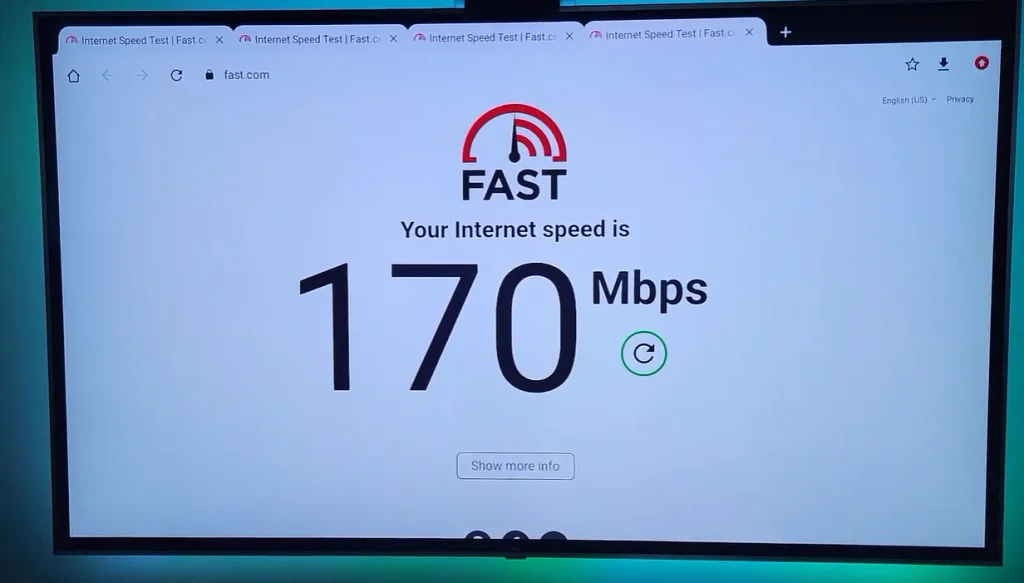
Stable live broadcasting requires consistent packet delivery rather than raw burst speed. When network handshakes stall, channels report connection failed or display endless loading wheels.
Android TV OS frequently suffers from dual-interface routing conflicts where the system attempts to send traffic through wireless channels even when an Ethernet cable is inserted.
Apply these network stability fixes:
- Force Ethernet Priority: If connected via network cable, go to Settings, open Network & Internet, and switch Wi-Fi Off to force data through the physical LAN port.
- Reboot Network Hardware: Unplug your modem and router for sixty seconds before plugging them back in, allowing your router to refresh local DHCP lease tables.
- Switch to 5GHz Band: If Ethernet is unavailable, connect your console to a 5GHz wireless network rather than crowded 2.4GHz frequencies.
For comprehensive setup steps to optimize your connection, review our walkthroughs on how to connect superbox to wifi and superbox not connecting to ethernet.
Fixing HDMI Handshake and Black Screen Display Errors
A black television screen while the SuperBox displays a solid blue LED indicates that internal hardware is functioning, but video signals cannot reach your television.
This error commonly results from an HDMI handshake mismatch or display resolution conflict between your console and television panel.
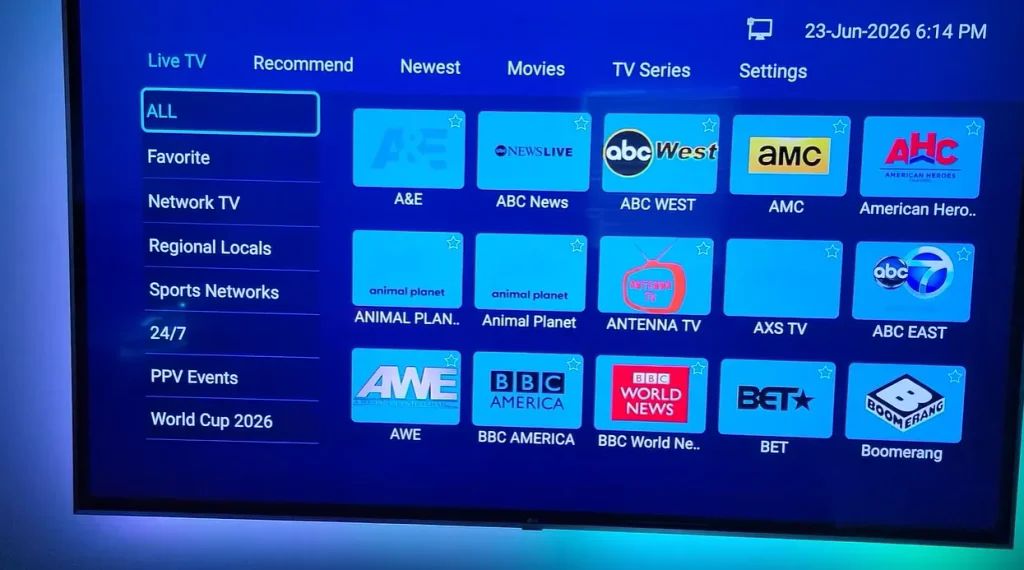
Follow these display recovery steps:
- Verify Television Input: Confirm that your television is tuned to the exact input port where your cable is connected, such as HDMI 1 or HDMI 2.
- Reseat the HDMI Cable: Unplug both ends of the HDMI cable, inspect connector pins for damage, and reconnect firmly.
- Swap Ports and Cables: Connect your cable to an alternate port on your television or replace old cables with a certified high-speed HDMI 2.0 cable.
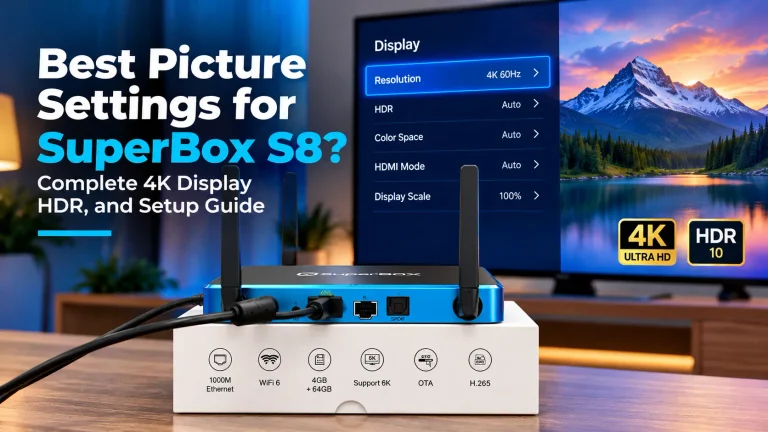
- Adjust Display Resolution: If your box was previously configured for 4K 60Hz and connected to an older 1080p display, connect to a 4K screen temporarily to set resolution back to Auto.
For an exhaustive guide on resolving video output errors, consult our full tutorial on superbox hdmi no signal fix.
Resetting and Re-Pairing an Unresponsive Remote Control
When remote clicks fail to register, dead batteries, residual circuit charge, or unlinked Bluetooth profiles are typically responsible.
Follow this two-step routine to reset and re-pair your remote:
- Drain Residual Power: Remove both batteries from the remote control. Press and hold the power button for twenty seconds to discharge internal capacitors completely, then insert fresh AAA batteries.
- Initiate Bluetooth Pairing: Stand within three feet of your console. Press and hold the OK button and Return/Back button simultaneously for eight seconds until the red indicator light flashes.
- Clear Remote Obstructions: Ensure no soundbars, game consoles, or decorative items block the infrared sensor located on the front panel of your SuperBox.
If your remote control buttons continue to malfunction, follow our in-depth walkthrough on superbox remote not working.
Performing a System Factory Reset and Restoring the App Store
If your console experiences persistent software corruption, boot loops, or crashing menus that basic fixes cannot resolve, a clean factory reset restores original system firmware.
A factory reset erases temporary files and returns the operating system to factory specifications.
Follow these steps to perform a factory reset:
- Open Settings: Click the Gear Icon in the upper right corner of your home screen.
- Navigate to About: Select Device Preferences, scroll down to About, and choose Factory reset.
- Confirm System Wipe: Select Factory reset and choose Erase everything to initiate the restoration.
- Remote Shortcut Method: If menus are unreachable, press the 0 key eight times consecutively on your remote from the home screen to trigger an automated reset.
- Reinstall App Store: Once your box reboots, open the web browser, navigate to 143326.cc, and download the official App Store package.
For step-by-step guidance after restoring your system, review our tutorials on how to factory reset superbox and restore superbox app store after factory reset.
Comprehensive SuperBox Troubleshooting Reference Matrix
The reference matrix below matches common operational symptoms with their proven corrective actions.
| Observed Malfunction | Most Probable Root Cause | Verified Corrective Action |
|---|---|---|
| Channels Stuck at 98 Percent | Fragmented buffer cache or DNS timeout | Clear Blue TV cache and update DNS to 1.1.1.1 |
| Video Freezes While Audio Plays | Video decoder pipeline stall or GPU overload | Switch Decode Mode from Hardware to Software |
| TV Shows No Signal on Blue Light | HDMI handshake mismatch or resolution conflict | Reseat HDMI cable, test HDMI Port 2, or set resolution to Auto |
| Remote Fails to Control Box | Bluetooth unpairing or residual charge lock | Hold power button 20s without batteries and re-pair with OK plus Back |
| Wired Connection Not Recognized | Wi-Fi routing priority conflict | Turn Wi-Fi Off in Network Settings to force Ethernet priority |
| Box Freezes After 45 Minutes | Processor thermal throttling from poor airflow | Elevate console base half an inch using rubber corner pads |
Video Walkthrough for Troubleshooting SuperBox Issues
Visual demonstrations clarify hardware checks and menu navigation significantly. The video tutorial below demonstrates practical troubleshooting routines to restore your SuperBox when errors occur.
In this video walkthrough, you will see how power resets, cable checks, remote pairing, and cache clearances restore fluid performance across all channels.
Frequently Asked Questions About SuperBox Troubleshooting
Here are concise answers to common inquiries regarding SuperBox system troubleshooting.
Why Is My SuperBox Stuck at 98 Percent Loading
A 98 percent loading loop occurs when the media player fails to establish a server handshake due to corrupted cache. Go to Settings, Apps, Blue TV, and select Clear cache. In addition, setting static DNS to 1.1.1.1 eliminates domain lookup timeouts.
How Do I Re-Pair My SuperBox Remote When It Stops Responding
Remove the batteries and hold the remote power button for twenty seconds to drain residual charge. Reinsert fresh batteries, stand near your console, and hold the OK and Return buttons together for eight seconds until the red light flashes.
What Does Error 14113 or Token Socket Exception Mean
These error codes indicate that the stream request timed out due to network packet loss or temporary edge server maintenance. Clear your app cache, reboot your router, or switch to the Backup TV application to restore streaming.
How Can I Tell If SuperBox Servers Are Down
Test whether Blue VOD plays movies while live channels fail. If VOD functions normally, live broadcast servers are undergoing maintenance. You can verify outages in user groups and switch to Backup TV for uninterrupted viewing.
Why Upgrading to SuperBox S8 Ultra Guarantees Seamless Reliability
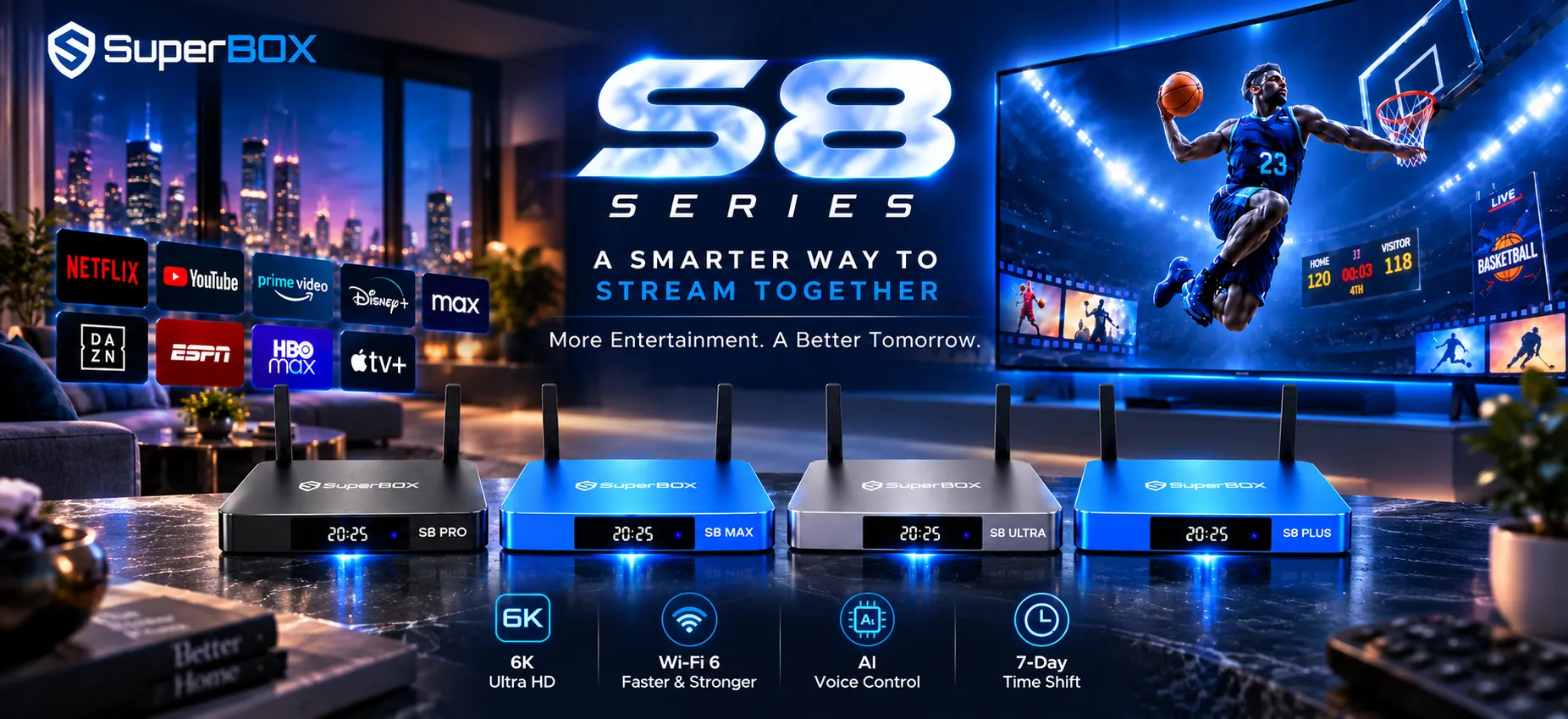
Older streaming boxes equipped with legacy processors struggle under modern high-bitrate streaming loads. Upgrading to the flagship SuperBox S8 Ultra ($449) eliminates hardware bottlenecks permanently.
The SuperBox S8 Ultra features an upgraded quad-core processing platform paired with 4GB of fast DDR4 RAM and 64GB of internal storage. Its advanced aluminum heatsink design prevents thermal throttling, while dual-band Wi-Fi 6 and gigabit Ethernet ensure buffer-free playback.
With optimized firmware and regular automated system updates, the S8 Ultra delivers the most reliable television streaming performance on the market.
Where to Buy Authentic SuperBox Hardware with Warranty Coverage
Purchasing streaming equipment requires complete confidence in genuine components, authorized firmware, and dependable warranty coverage. Unauthorized marketplaces frequently distribute modified hardware that lacks official technical support.
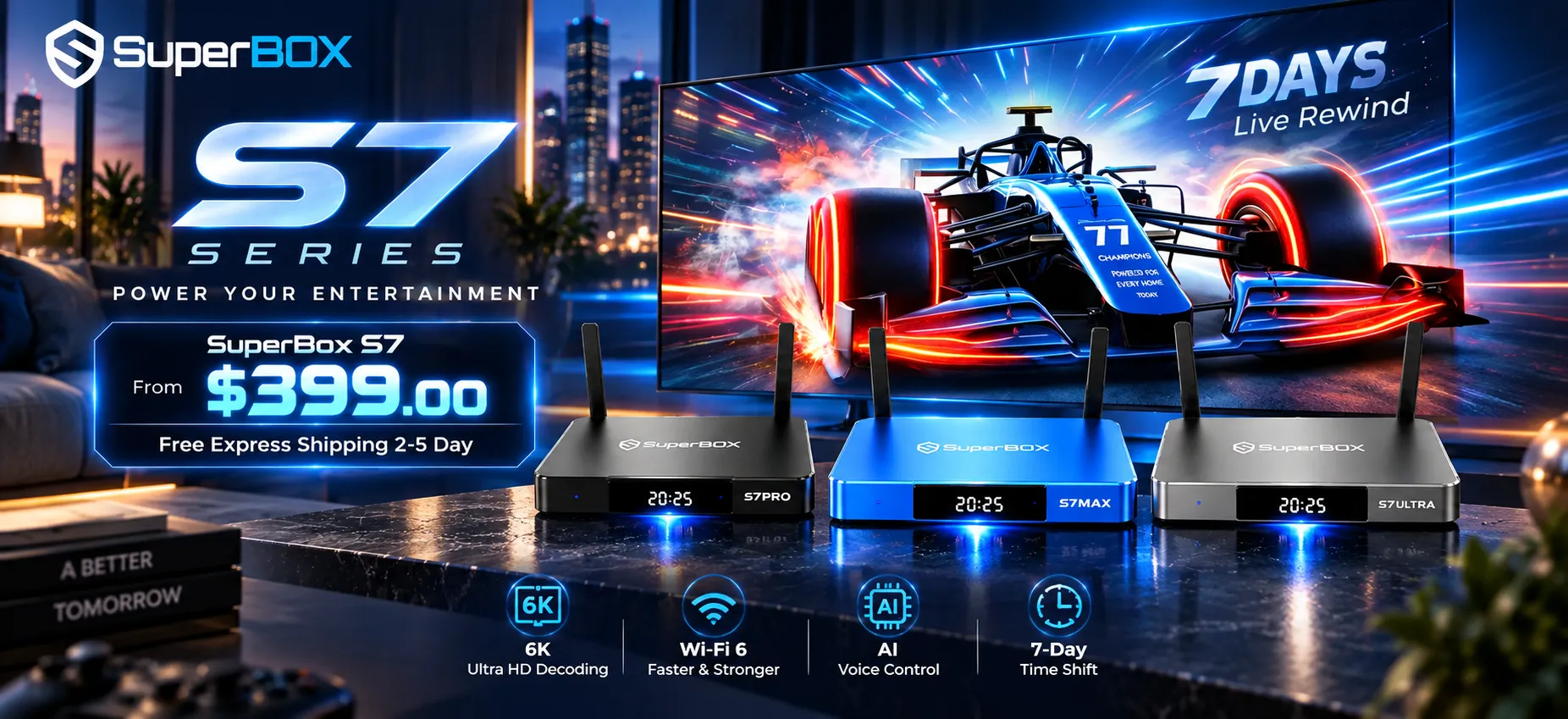
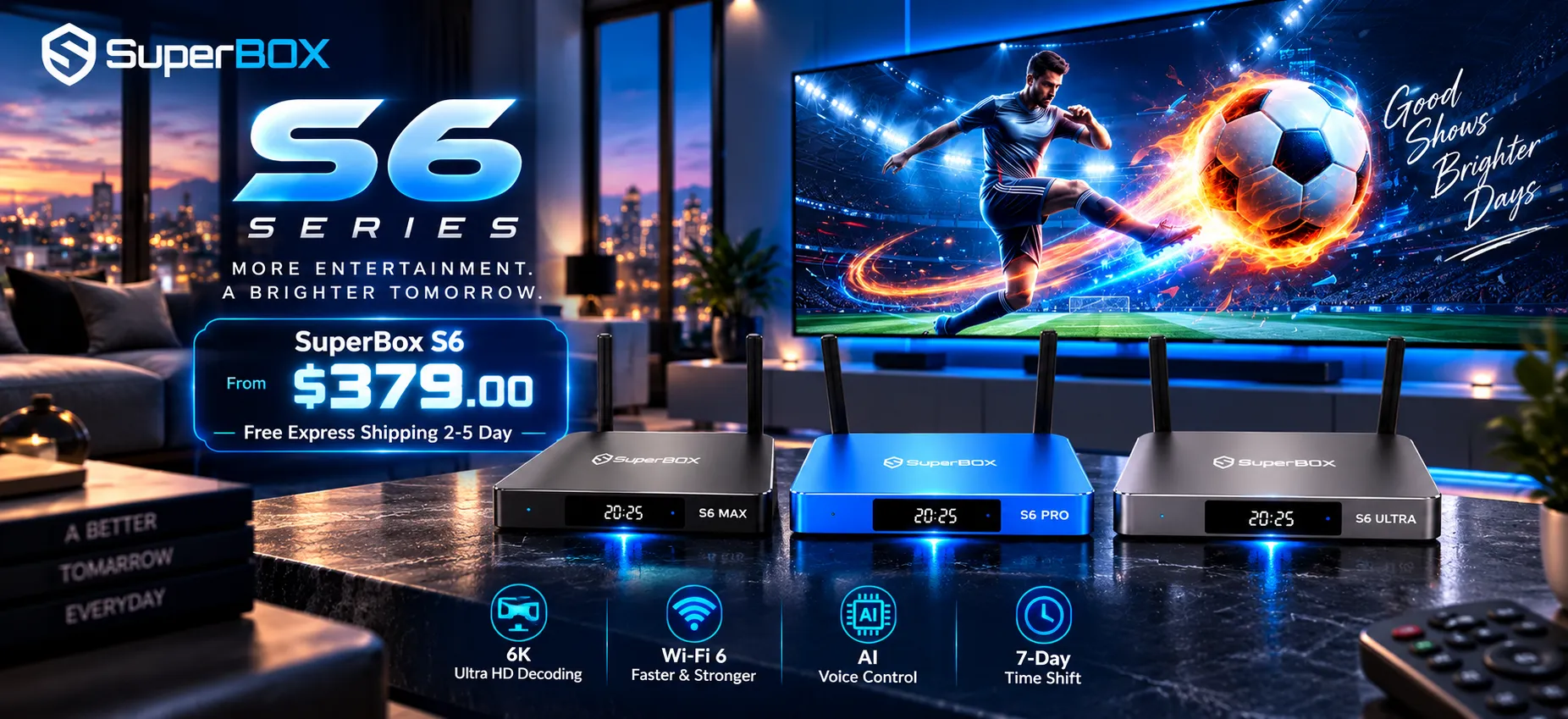
SuperBox for TV is an authorized SuperBox dealer, ensuring 100% authentic SuperBox S6, S7 & S8 devices with full warranty support in US & Canada. When you invest in your home entertainment setup through SuperBox, you gain comprehensive buyer protections:
- Free Shipping: Fast 3 to 5 business day delivery across the United States and Canada with full real-time package tracking.
- Free Lifetime Tech Support: Dedicated technical specialists available 24/7 via live chat, email, and phone for troubleshooting assistance.
- 30-Day Money-Back Guarantee: Hassle-free return policy if you are not completely satisfied with your streaming hardware performance.
- 1-Year Manufacturer Warranty: Full replacement coverage safeguarding against any hardware defects or system component failures.
- 100% Authentic Hardware: Direct factory units guaranteed genuine without modified firmware, unauthorized alterations, or security risks.
If you are configuring a newly received media console, follow our step-by-step setup guide on how to set up superbox s7 for optimal installation.
Reader Discussion & Verified Reviews
Real feedback, setup tips, and hands-on impressions from verified SuperBox owners and tech enthusiasts.