

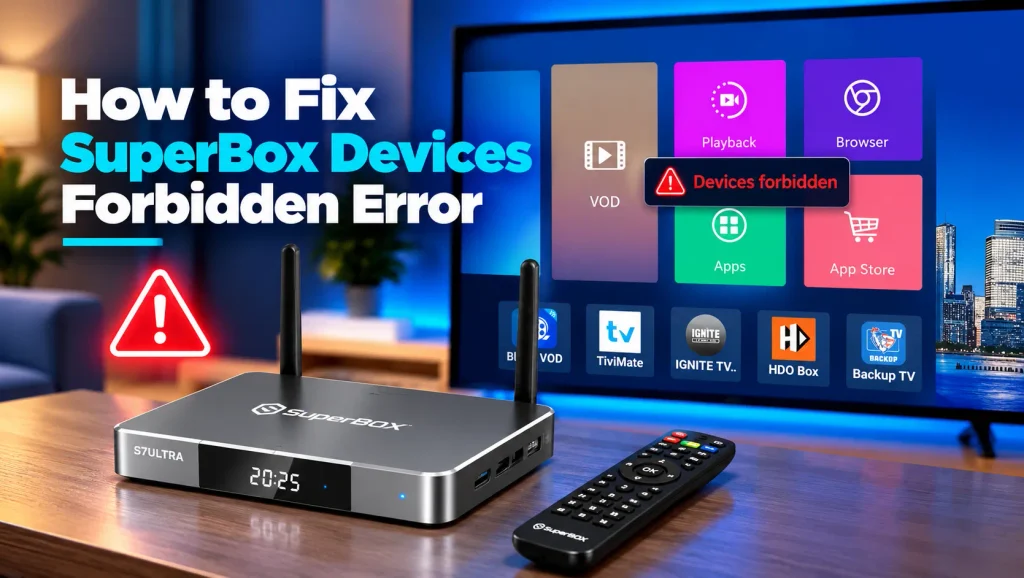
The SuperBox devices forbidden error indicates an authentication block where the manufacturer server rejects your device MAC address due to reseller price policy violations, expired security tokens, or ISP firewall blocks.
Testing your connection on a mobile hotspot, updating system firmware via OTA, or performing a clean factory reset clears local token errors and restores access for legitimate devices in minutes.
This guide explains why devices forbidden locks occur, how to bypass network-level blocks, and the exact steps to whitelist your device serial number through authorized channels. Follow these proven solutions to restore full streaming.
What Causes the SuperBox Devices Forbidden Error
When opening Blue TV or the central App Store, your console initiates an encrypted handshake with remote authorization servers operated by Super Media Technology Limited.
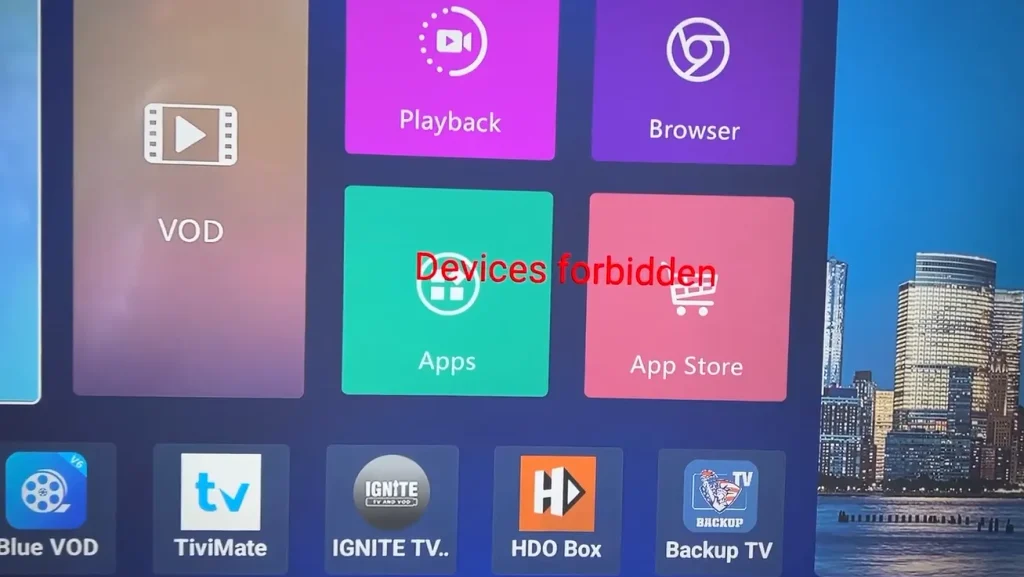
If this security handshake fails, the server rejects the request and returns an on-screen warning stating that the device is forbidden or prohibited.
This authentication lockup stems from two primary categories:
- Manufacturer Server Policy Enforcement: The manufacturer actively enforces strict minimum advertised pricing rules. When unauthorized third-party sellers on marketplaces discount units below official thresholds, the manufacturer temporarily blacklists that distributor batch of MAC addresses.
- Expired Authentication Tokens: If a media box remains powered off in storage for several months, its local security certificate expires, preventing automatic server reconnection.
- ISP Firewall and DNS Filtering: Certain broadband providers employ automated security filters that intercept or block communication between your console and remote validation servers.
- Outdated Application Builds: Running obsolete versions of Blue TV or the launcher can cause cryptographic signature mismatches with modernized server protocols.
If your console experiences general software crashes alongside authorization errors, consult our troubleshooting guide on superbox not working for system checks.
Immediate Triage Testing on a Mobile Hotspot
Before attempting deep system resets or contacting support, the fastest diagnostic step is connecting your console to a temporary cellular network.
Using a smartphone mobile hotspot completely bypasses your residential internet service provider, home router firewalls, and local DNS blocks.

Follow these steps to conduct a hotspot test:
- Enable Smartphone Hotspot: Open settings on your cellular phone and turn on your Personal Hotspot (ensuring 2.4GHz or 5GHz Wi-Fi broadcasting is active).
- Disconnect Home Network: Unplug the Ethernet cable from your SuperBox and navigate to Settings, then Network & Internet.
- Connect to Cellular Hotspot: Select your phone hotspot from the available wireless list, enter your password, and connect.
- Relaunch Streaming Apps: Open Blue TV or the App Store. If the forbidden warning disappears, the lock is caused by your home internet provider rather than a permanent hardware blacklist.
For comprehensive setup steps to optimize wireless networking, explore our walkthrough on how to connect superbox to wifi.
Updating System Firmware and Application Packages via OTA
Running outdated system firmware frequently causes cryptographic mismatches during server handshakes. Installing official over-the-air updates refreshes root security certificates.
SuperBox consoles receive regular security patches that update authorization protocols and resolve known application bugs.
Follow these steps to update your software:
- Open Settings: From your home screen, click the Gear Icon in the upper right corner.
- Navigate to About: Select Device Preferences, scroll down to About, and choose System update.
- Check for Updates: Click Check for update and allow the system to download any pending firmware packages.
- Run TVROM Updater: If available on your model, open the TVROM Updater utility from your applications drawer to apply core system patches.
- Reinstall Official Apps: Open your web browser, enter 143326.cc, and re-download the latest official App Store package to ensure up-to-date playback engines.
For detailed steps on resolving streaming application errors, review our tutorial on superbox blue tv not working fix.
Configuring High Speed DNS and Virtual Private Networks
If your internet service provider actively restricts IPTV authentication servers, modifying your domain name system or encrypting your traffic circumvents the block.
Switching to verified public DNS servers prevents local ISP DNS hijacking and accelerates domain resolution times.
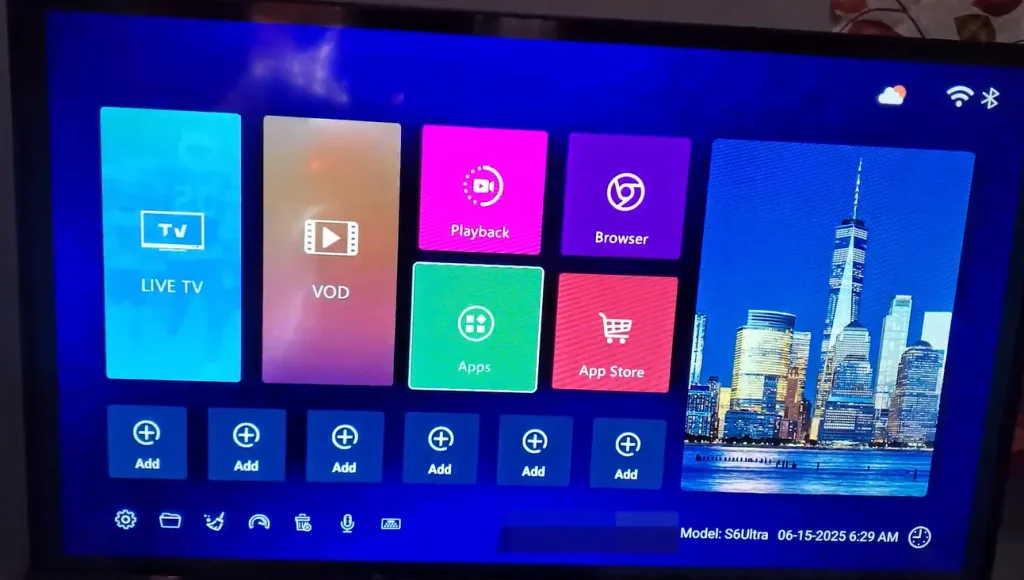
Follow these steps to update your network configuration:
- Access Network Settings: Navigate to Settings, choose Network & Internet, and select your active network.
- Switch to Static IP: Change IP configuration from DHCP to Static.
- Set Public DNS Servers: Configure Primary DNS to 1.1.1.1 (Cloudflare) and Secondary DNS to 8.8.8.8 (Google).
- Install a Secure VPN: If DNS modification does not clear the block, install a reputable virtual private network to encrypt your data flow and route authentication requests through an unrestricted server node.
To learn which VPN protocols deliver the highest streaming throughput without speed penalties, consult our guide on the best vpn for superbox.
Performing a Factory Reset to Clear Corrupted Security Tokens
When local system caches become heavily corrupted, the media player cannot generate fresh authentication handshakes. A factory reset wipes temporary token registries and forces the operating system to rebuild its security keys.
Performing a reset restores original factory settings and removes broken configuration files.
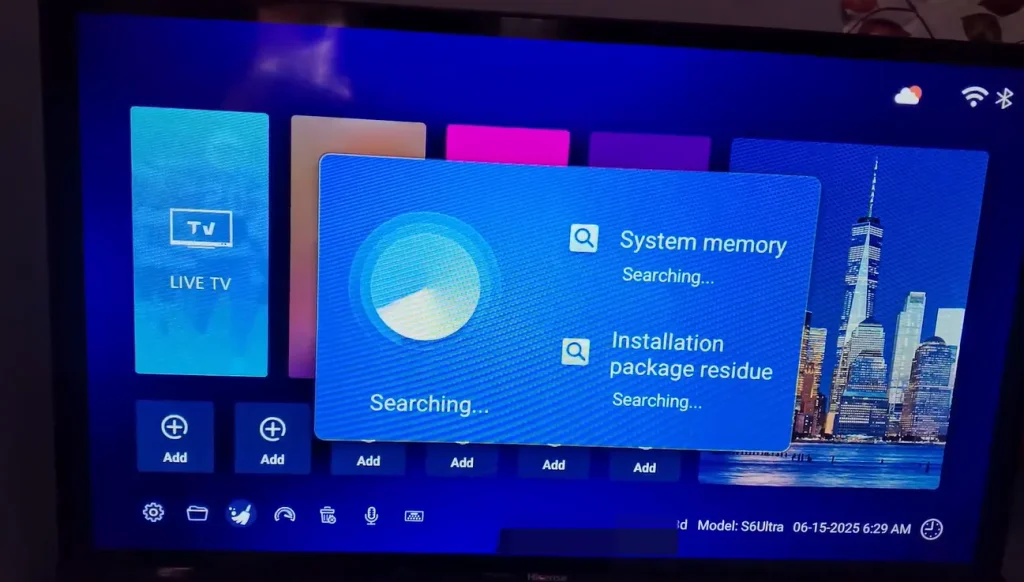
Follow these steps to perform a factory reset:
- Open Settings: From your home screen, click the Gear Icon in the upper right corner.
- Navigate to Reset Menu: Select Device Preferences, scroll down to About, and choose Factory reset.
- Confirm System Erase: Select Factory reset and confirm by selecting Erase everything.
- Remote Shortcut Method: If you cannot navigate menus, press the 0 key eight times consecutively on your remote control from the main screen to initiate an automatic wipe.
- Reinstall App Store: After the box reboots, open the web browser, navigate to 143326.cc, and install the App Store.
For step-by-step guidance after restoring your system, review our comprehensive tutorials on how to factory reset superbox and restore superbox app store after factory reset.
Whitelisting Your Device Serial Number Through Authorized Support
If your console remains locked after testing a mobile hotspot and performing a factory reset, the unit has likely been blacklisted by the manufacturer due to reseller policy violations.
This situation commonly occurs when buyers purchase units from unauthorized sellers on TikTok Shop, eBay, or unverified Amazon storefronts that engage in unauthorized price dumping.
Follow this procedure to request MAC address whitelisting:
- Locate Hardware Identifiers: Navigate to Settings, select Device Preferences, click About, and select Status. Note down your MAC address and Serial Number (also printed on the bottom barcode sticker).
- Contact Original Seller: Reach out to the vendor where you purchased the device. The seller must settle any pricing compliance penalties with the manufacturer before locked hardware batches are released.
- Contact SuperBox Support: If the seller is unresponsive, submit a ticket to official SuperBox technical support with your purchase receipt, MAC address, and serial number to request account review.
For broader hardware diagnosis techniques, consult our master guide on superbox troubleshooting.
Comprehensive Devices Forbidden Troubleshooting Reference Matrix
The reference matrix below matches observable authorization symptoms with verified corrective actions.
| Observed Error Symptom | Probable Technical Root Cause | Verified Corrective Action |
|---|---|---|
| Forbidden Warning on Home Wi-Fi Only | ISP firewall or DNS blocking authorization server | Switch to mobile hotspot or configure DNS to 1.1.1.1 |
| Error Appears After Months of Inactivity | Expired local device security token | Perform a system factory reset and reconnect to internet |
| Error Immediately After Recent Purchase | Reseller blacklisted for minimum price violations | Contact seller with MAC address to settle manufacturer fine |
| App Store Shows Forbidden Notice | Obsolete application build or broken signature | Download latest App Store package from 143326.cc |
| Forbidden Notice on All Channels | Device MAC address blocked on central server | Submit purchase receipt and serial number to official support |
Video Walkthrough for Fixing SuperBox Device Forbidden Errors
Visual guides clarify manufacturer policies and technical troubleshooting routines significantly. The video tutorial below explains why the device forbidden error occurs and how to resolve it.
In this video walkthrough, you will learn how manufacturer pricing regulations impact reseller batches and what actions restore your device to active status.
Frequently Asked Questions About Devices Forbidden Error
Here are direct answers to common questions regarding the SuperBox devices forbidden message.
What Does Devices Forbidden Mean on SuperBox
The devices forbidden message means the manufacturer authorization server has denied your device access. This typically happens when an unauthorized reseller violates pricing policies, causing batch MAC blacklisting, or when local security certificates expire.
Can a Factory Reset Fix the Devices Forbidden Error
A factory reset fixes the error if the root cause is corrupted local tokens or expired security certificates. However, if the manufacturer has actively blacklisted the hardware MAC address due to reseller violations, only the manufacturer or seller can remove the server block.
Why Does Connecting to a Mobile Hotspot Clear the Error
Connecting to a cellular hotspot bypasses residential ISP firewalls and DNS filtering. If the message disappears on a hotspot, your console hardware is completely authorized, and the block was caused by your home internet provider.
How Do I Locate My SuperBox MAC Address to Whitelist It
Navigate to Settings, select Device Preferences, click About, and select Status. Your MAC address is listed on-screen and also printed on the barcode label on the underside of your console.
Why Upgrading to SuperBox S8 Ultra Guarantees Seamless Reliability
Dealing with gray-market lockouts and outdated hardware highlights the importance of modern, authentic equipment. Upgrading to the flagship SuperBox S8 Ultra ($449) eliminates authorization risks permanently.
The SuperBox S8 Ultra features an upgraded quad-core processor with 4GB of fast DDR4 RAM and 64GB of internal storage. Backed by direct factory authorization, gigabit Ethernet, and dual-band Wi-Fi 6, it delivers fluid 4K streaming without server lockouts.
Purchasing genuine hardware ensures uninterrupted access to automated firmware updates and guaranteed cloud server connectivity.
Where to Buy Authentic SuperBox Hardware with Warranty Coverage
Purchasing streaming equipment requires absolute certainty regarding genuine hardware, valid serial numbers, and authorized distribution. Buying from unauthorized discount sellers risks receiving blacklisted hardware with no manufacturer recourse.
SuperBox for TV is an authorized SuperBox dealer, ensuring 100% authentic SuperBox S6, S7 & S8 devices with full warranty support in US & Canada. When you invest in your home entertainment setup through SuperBox for TV, you gain comprehensive buyer protections:
- Free Shipping: Fast 3 to 5 business day delivery across the United States and Canada with full real-time package tracking.
- Free Lifetime Tech Support: Dedicated technical specialists available 24/7 via live chat, email, and phone for troubleshooting assistance.
- 30-Day Money-Back Guarantee: Hassle-free return policy if you are not completely satisfied with your streaming hardware performance.
- 1-Year Manufacturer Warranty: Full replacement coverage safeguarding against any hardware defects or system component failures.
- 100% Authentic Hardware: Direct factory units guaranteed genuine without modified firmware, unauthorized alterations, or security risks.
If you are configuring a newly received media console, follow our step-by-step setup guide on how to set up superbox s7 for optimal installation.
Reader Discussion & Verified Reviews
Real feedback, setup tips, and hands-on impressions from verified SuperBox owners and tech enthusiasts.