

The SuperBox devices abnormal error occurs when the App Store or Blue TV fails authentication due to date and time synchronization mismatches, corrupted application cache, network DNS stalls, or temporary server maintenance.
Most abnormal device warnings clear immediately by setting network time automatically, clearing the App Store cache, power cycling your router, or reinstalling the latest application build from official sources.
This guide provides step by step instructions to diagnose communication failures, fix SSL handshake timeouts, and distinguish temporary server glitches from reseller account locks. Follow these verified fixes to restore full access.
What Triggers the SuperBox Devices Abnormal Warning
When you launch the SuperBox App Store or Blue TV, the application communicates with central authentication servers to verify active service credentials.
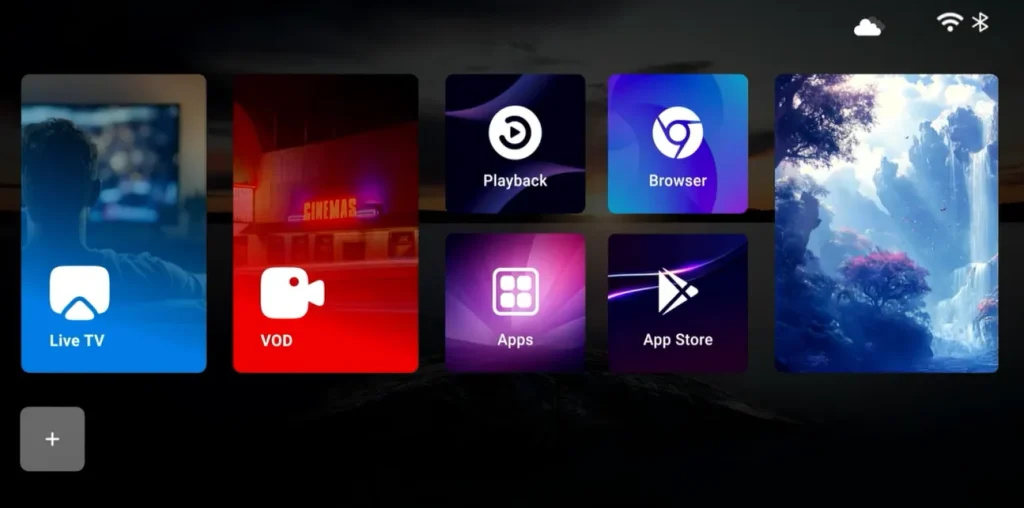
If this verification fails, the system blocks access and displays an on-screen prompt stating that the device is abnormal, often requesting you to contact customer service.
This malfunction generally stems from five underlying technical causes:
- Date and Time Desynchronization: If your console loses clock synchronization, SSL security certificates fail validation, causing servers to flag the connection as abnormal.
- Corrupted App Store Cache: Accumulated temporary files can corrupt local token registries, preventing the App Store from reading device credentials properly.
- Server-Side Maintenance: Cloud infrastructure updates or database migrations frequently trigger temporary abnormal notifications across entire server clusters.
- Network Token Timeouts: Residential router firewall restrictions or DNS lookup delays cause socket errors such as error code 0-12 token network error.
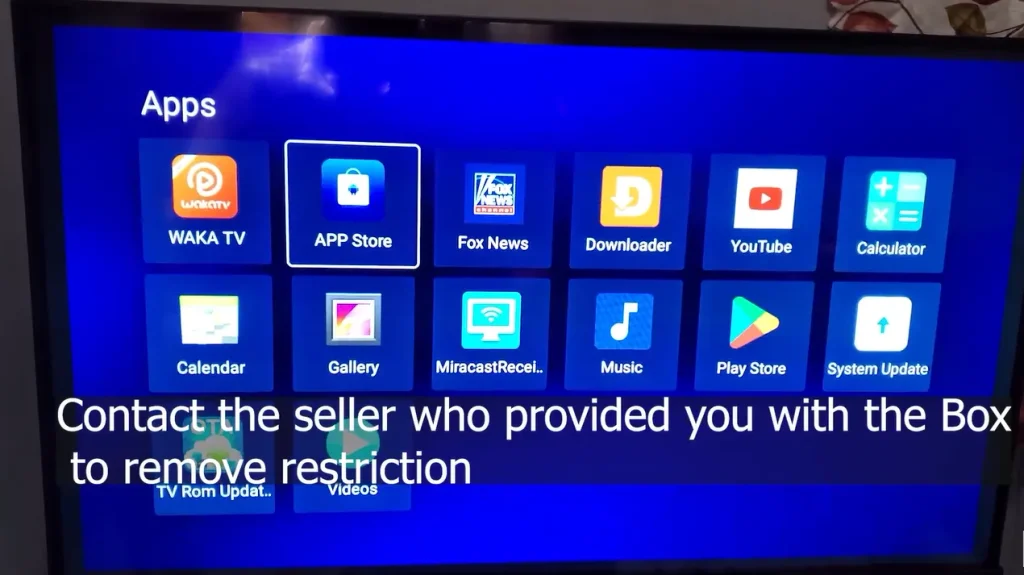
- Reseller Authorization Locks: In severe cases, devices sold by non-compliant distributors facing minimum pricing penalties experience temporary server restrictions.
If your console exhibits broader authorization blocks across all system services, review our in-depth walkthrough on superbox devices forbidden fix.
Synchronizing Date and Time to Resolve SSL Handshake Failures
A widely overlooked cause of the devices abnormal error is an unsynchronized system clock. Secure server handshakes rely on precise cryptographic timestamp verification.
When a media box is disconnected from power or experiences network interruptions, its internal clock can reset to a past date. Because security certificates appear expired, authentication servers reject the connection.
Follow these steps to restore automatic time synchronization:
- Open Settings: From your SuperBox home screen, select the Gear Icon in the upper right corner.
- Navigate to Device Preferences: Scroll down and select Device Preferences, then click on Date & time.
- Enable Network Time: Highlight Automatic date & time and toggle the setting to Use network-provided time.
- Confirm Time Zone: Select Set time zone and verify that your geographic region matches your actual physical location.
- Restart Console: Power cycle your box using the remote control and launch the App Store to verify that server authentication succeeds.
If network time fails to sync automatically due to wireless dropouts, follow our setup tutorial on how to connect superbox to wifi.
Clearing Cache and Data in the SuperBox App Store
Over weeks of streaming and downloading software, temporary files accumulate in the system cache. When these files become fragmented, the App Store fails to refresh authorization tokens.
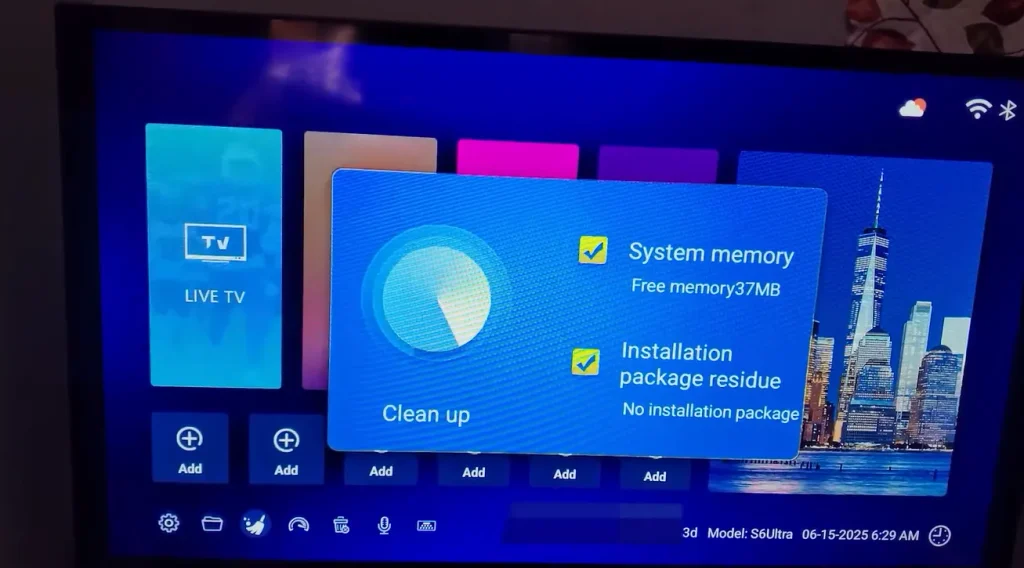
Clearing the application cache and stored data resets the App Store to a fresh initial state without deleting your installed streaming players.
Follow these steps to clear App Store data:
- Open Application Manager: Navigate to Settings and select Apps.
- Show All Applications: Click on See all apps to view system and user software.
- Locate App Store: Scroll through the list and select the App Store (or SuperBox App Store).
- Clear Cache: Select Clear cache and confirm with the OK button on your remote.
- Clear Stored Data: Select Clear data to wipe corrupted token registries.
- Relaunch Application: Return to the home screen and open the App Store. The application will rebuild fresh configuration files and establish a clean server connection.
For complete memory maintenance routines across all media apps, refer to our guide on how to clear cache on superbox.
Reinstalling the Central App Store and Blue TV Applications
If clearing cache fails to clear the abnormal warning, the application installation itself may have suffered file corruption during a background update.
Manually reinstalling official APK packages from SuperBox utility servers restores clean system binaries.
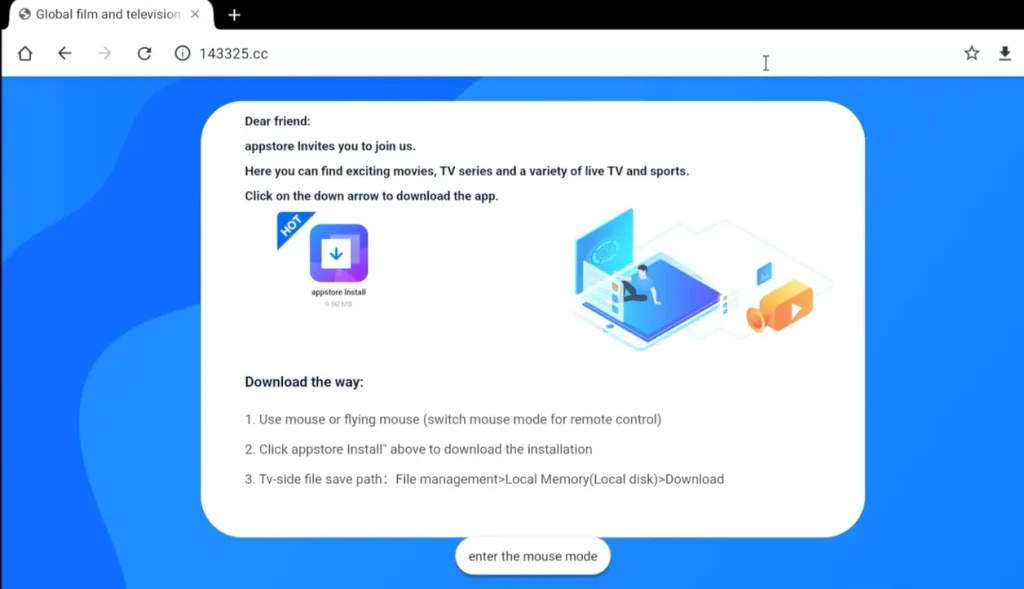
Apply these reinstallation steps:
- Uninstall Stalled App: Go to Settings, select Apps, highlight Blue TV or the problematic player, and choose Uninstall.
- Open Web Browser: Return to your home screen and open the pre-installed web browser.
- Navigate to Official Repository: Enter the official installation address 143326.cc or 14325.cc into the address bar.
- Download App Store APK: Download the latest App Store installation package.
- Install Package: Open your downloads, select the APK file, permit unknown app installation if prompted, and complete the setup.
- Download Blue TV: Open the newly installed App Store and download a fresh copy of Blue TV.
For detailed steps on restoring missing utility portals, review our dedicated guide on restore superbox app store after factory reset and our walkthrough on superbox blue tv not working fix.
Power Cycling Network Hardware to Clear Token Network Errors
Network handshakes frequently stall when residential routers suffer from ARP table collisions or DNS resolution timeouts, leading to error code 0-12 token network errors.
Performing a full network power cycle and switching to high-speed public DNS addresses eliminates connection bottlenecks.
Follow these network recovery steps:
- Execute Router Cold Boot: Unplug the power cords from your modem and router. Wait sixty seconds before reconnecting power, allowing your router to assign fresh IP leases.
- Configure High Speed DNS: On your SuperBox, navigate to Settings, select Network & Internet, choose your connection, switch IP assignment to Static, and set Primary DNS to 1.1.1.1 (Cloudflare) and Secondary DNS to 8.8.8.8 (Google).
- Test Cellular Hotspot: To rule out local provider filtering, connect your console to a smartphone mobile hotspot. If the abnormal error clears on cellular data, your home ISP is restricting validation traffic.
- Activate a Secure VPN: If your broadband provider throttles IPTV authentication protocols, routing your traffic through an encrypted tunnel restores reliable communication.
To find the top-rated privacy solutions for streaming hardware, review our analysis in our guide on the best vpn for superbox.
Performing a Factory Reset and Checking Reseller Authorization Status
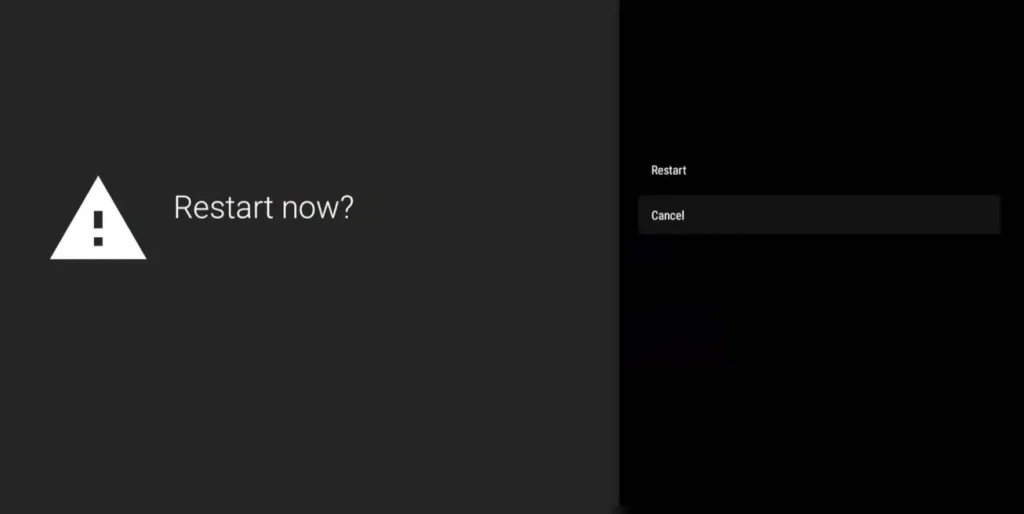
When system-level configuration files become deeply corrupted, a clean factory reset wipes broken registries and returns your console to factory specifications.
If the abnormal warning persists across multiple network connections even after a factory reset, your device MAC address may be restricted on backend servers due to distributor compliance reviews.
Follow these steps for deep system recovery:
- Initiate Factory Reset: Go to Settings, select Device Preferences, scroll to About, select Factory reset, and confirm with Erase everything.
- Locate Hardware Information: After rebooting, navigate to Settings, About, and click Status to record your MAC address and Serial Number.
- Contact Authorized Support: If the error remains, contact your original seller or official SuperBox support with your invoice and MAC address to request authorization verification.
For complete walkthroughs on system recovery and general hardware maintenance, consult our master tutorials on how to factory reset superbox and superbox troubleshooting.
Comprehensive Devices Abnormal Error Troubleshooting Matrix
The troubleshooting matrix below matches specific abnormal symptoms with their verified corrective actions.
| Observed Error Symptom | Probable Technical Cause | Verified Corrective Action |
|---|---|---|
| App Store Opens to Device Abnormal | Date and time desynchronization or clock reset | Enable network-provided time in Date & Time settings |
| Error Freezes on App Store Screen | Fragmented App Store token cache | Clear cache and clear data in App Store settings |
| 0-12 Token Network Error Notice | Router DHCP lease timeout or socket block | Power cycle modem and router for sixty seconds |
| Abnormal Error on Blue TV Only | Corrupted application APK update | Uninstall app and reinstall fresh build via 143326.cc |
| Persistent Error Across All Networks | Distributor compliance lock or MAC restriction | Contact seller or support with device MAC address |
If your streaming console exhibits general power or startup issues, review our comprehensive diagnostic guide on superbox not working.
Video Walkthrough for Fixing SuperBox Devices Abnormal Errors
Visual guides clarify menu navigation and troubleshooting routines significantly. The video tutorial below demonstrates practical methods to diagnose and resolve App Store abnormal errors.
In this video walkthrough, you will see how network checks, time synchronization, cache purges, and updates restore full access to your streaming applications.
Frequently Asked Questions About Devices Abnormal Error
Here are direct answers to common questions regarding the SuperBox devices abnormal message.
What Does Devices Abnormal Mean on SuperBox
The devices abnormal warning indicates that the application failed to authenticate with SuperBox verification servers. This is typically triggered by clock desynchronization, corrupted cache, network timeouts, or server maintenance.
Why Does Incorrect Date and Time Cause the Abnormal Error
SuperBox authorization servers use encrypted SSL connections that require accurate timestamps. If your box clock resets to an incorrect year, security certificates fail validation and trigger the abnormal alert.
How Do I Clear App Store Cache to Fix the Error
Go to Settings, select Apps, choose See all apps, select App Store, and click Clear cache followed by Clear data. This removes damaged token files and forces the app to request fresh server credentials.
What Is the Difference Between Device Abnormal and Devices Forbidden
Device abnormal usually points to a local software handshake, cache, or time sync glitch that users can fix themselves. Devices forbidden indicates a deliberate server-side block, typically caused by reseller pricing policy violations.
Why Upgrading to SuperBox S8 Ultra Guarantees Seamless Reliability
Older streaming boxes equipped with outdated operating systems and limited memory struggle under modern cryptographic streaming protocols. Upgrading to the flagship SuperBox S8 Ultra ($449) eliminates hardware bottlenecks permanently.
The SuperBox S8 Ultra features an upgraded quad-core processor paired with 4GB of fast DDR4 RAM and 64GB of internal storage. Its advanced Wi-Fi 6 connectivity, gigabit Ethernet port, and direct factory authorization guarantee uninterrupted cloud server access.
With optimized firmware and regular automated system updates, the S8 Ultra delivers the most reliable television streaming experience available today.
Where to Buy Authentic SuperBox Hardware with Warranty Coverage
Purchasing streaming equipment requires complete confidence in genuine components, authorized firmware, and dependable warranty coverage. Unauthorized marketplaces frequently distribute modified hardware that lacks official support.
SuperBox for TV is an authorized SuperBox dealer, ensuring 100% authentic SuperBox S6, S7 & S8 devices with full warranty support in US & Canada. When you invest in your home entertainment setup through SuperBox TV Box, you gain comprehensive buyer protections:
- Free Shipping: Fast 3 to 5 business day delivery across the United States and Canada with full real-time package tracking.
- Free Lifetime Tech Support: Dedicated technical specialists available 24/7 via live chat, email, and phone for troubleshooting assistance.
- 30-Day Money-Back Guarantee: Hassle-free return policy if you are not completely satisfied with your streaming hardware performance.
- 1-Year Manufacturer Warranty: Full replacement coverage safeguarding against any hardware defects or system component failures.
- 100% Authentic Hardware: Direct factory units guaranteed genuine without modified firmware, unauthorized alterations, or security risks.
If you are configuring a newly received media console, follow our step-by-step setup guide on how to set up superbox s7 for optimal installation.
Reader Discussion & Verified Reviews
Real feedback, setup tips, and hands-on impressions from verified SuperBox owners and tech enthusiasts.